> ## Documentation Index
> Fetch the complete documentation index at: https://algolia.com/llms.txt
> Use this file to discover all available pages before exploring further.
# Refine recommendations with rules
> Rules let you refine and curate your recommendations.
export const Application = () =>
application
;
export const AlgoliaRecommend = () => ;
export const AcademyLink = ({href, title}) => {
return Learn more about: {title};
};
Recommend rules are if-then statements that let you refine and curate your recommendations without editing code.
When a **condition** (if) is met, the rule's **consequences** (then) are applied to the recommendations.
The number of rules you can apply to a recommendation scenario depends on your [Algolia plan](https://www.algolia.com/pricing/).
## Examples
Examples for rules include:
* Show related items from the same category as the viewed product. Create a rule "Boost items" as consequence, where you select the category attribute and the `sameAsViewedItem` value. This doesn't exclude recommendations with different categories, which can be helpful if you have categories with only few recommendations.
* Exclude recommendations for out-of-stock products. For example, if your index has an `inventory` attribute as count, you can create a rule with "Filter items" as consequence, where you select `inventory > 0` as filter condition. This excludes all recommendations with 0 or undefined inventory.
* Curate recommendations by pinning them. For example, if you want to make best sellers or newly launched items show up first as recommendations, create a rule with the "Pin items" consequence and select specific items and their position in the list of recommendations.
* For all products from a specific category, boost items of a specific type. For example, in the category "hair" (`category:hair`), recommend all shampoos (`product_type:shampoo`) first. Create a rule with the "Subset of source items" condition and select "`category` is `hair`". Add a "Boost items" consequence with "`product_type` is `shampoo`".
## Add rules to recommendations
1. Go to the [Algolia dashboard](https://dashboard.algolia.com/explorer/browse) and select your Algolia .
2. On the left sidebar, select **Recommend**.
3. On the [**Rules**](https://dashboard.algolia.com/recommend/rules) page,
select the index and model to which you want to apply rules.
You can apply rules to trained Frequently Bought Together and Related Product models.
4. Click **+ New rule** and select the conditions when the rule should apply.
* **Any item is a source item.** The consequences of this rule apply to all recommendations.
* **Specific item is viewed.** The consequences of this rule apply only when recommendations for a specific item are retrieved.
* **Subset of source items.** The consequences of this rule apply to items that match a filter.
5. Optional: add a context for this rule. Contexts are additional constraints for rules. For more information, see [Context-only rules](/doc/guides/managing-results/rules/rules-overview#context-only-rules).
6. Under **Consequence(-s)**, click **Add consequence** and select what to do when the conditions are met:
* **Pin items**. Put one or more selected items at a specific position in the list of recommendations (`1` is first)
* **Hide items**. Exclude one or more selected items from the list of recommendations.
* **Boost items**. Enter filter criteria and show matching items before non-matching items in the list of recommendations.
* **Bury items**. Enter filter criteria and show matching items after non-matching items in the list of recommendations.
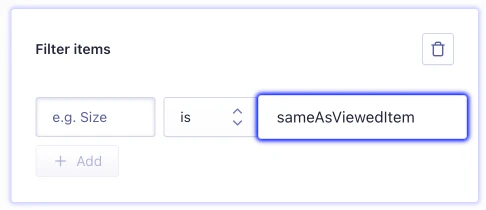
* **Filter items**. Enter filter criteria and only include matching items in the list of recommendations.
To only show items with the same attribute value as the viewed item, set the value to `sameAsViewedItem`.
7. Optional: add a description for the rule and select a timeframe, when the rule should be active.
### Promote items matching active filters
By default, pinned items appear in the recommendations, even if they don't match the filters applied to the request.
For example, if you pin an out-of-stock product, it still shows up when filtering for in-stock items only.
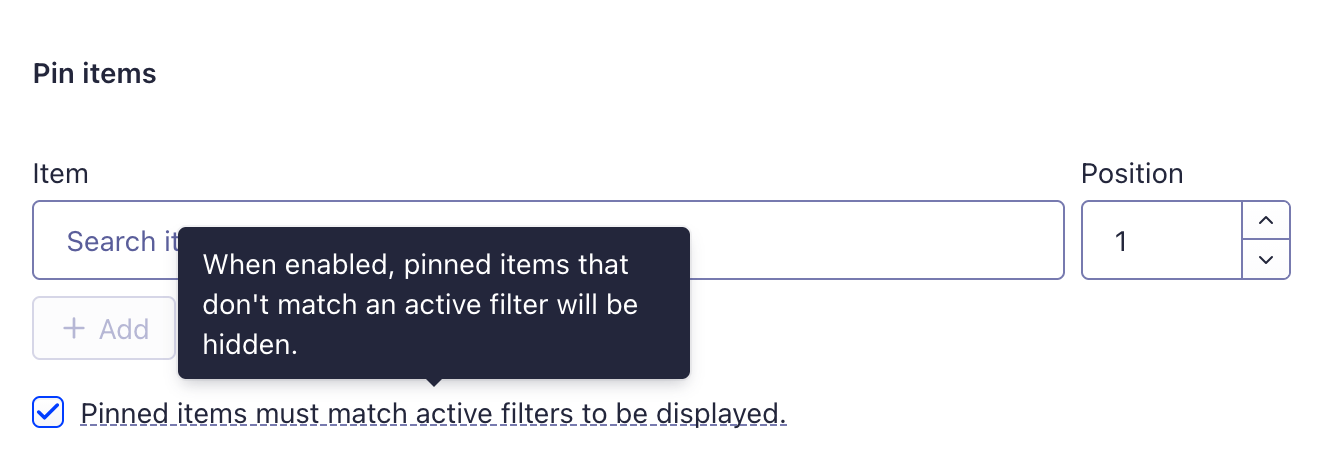
To pin an item *only* when it matches the active filters, select the **Pinned items must match active filters to be displayed** checkbox on the **Pin items** consequence.
With this option turned on, a pinned item appears only if it matches the filters applied at query time and the filters from other active rules.
If it doesn't match, it's dropped from the recommendations instead of being promoted.
This helps you avoid promoting irrelevant items, such as out-of-stock products or items outside the selected category.
{/* vale Google.Headings = NO */}
## Recommend rules precedence algorithm
Algolia uses the following tie-breaking algorithm to determine which rules should apply first:
1. Rules for which you've specified a context.
2. Rules with **Filter items**, **Boost items**, or **Bury items** consequences.
3. Rules with a specified validity time frame.
4. If there are still tied rules, the one with the lowest object ID (alphabetically ordered) wins.
## Debug applied rules
To see which rules are applied to a Recommend query,
pass `getRankingInfo: true` in the `queryParameters` option.
```js JavaScript icon=code theme={"system"}
recommendClient.getRecommendations({
requests: [
{
indexName: 'YourIndexName',
objectID: 'uniqueID',
model: 'related-products', // or bought-together
queryParameters: {
getRankingInfo: true,
}
}
]
})
```
The response includes an `appliedRules` array with the object IDs of all rules that were applied to the recommendations:
```jsonc JSON icon=braces theme={"system"}
{
"results": [
{
"appliedRules": [
{
"objectID": "rr-1234567890123"
},
{
"objectID": "rr-09876543210987"
}
],
// ... other response fields
}
]
}
```
This is useful for debugging and understanding why certain recommendations appear.
For more information, see [Debugging rules](/doc/guides/managing-results/rules/rules-overview/in-depth/debugging-rules/).

 7. Optional: add a description for the rule and select a timeframe, when the rule should be active.
### Promote items matching active filters
By default, pinned items appear in the recommendations, even if they don't match the filters applied to the request.
For example, if you pin an out-of-stock product, it still shows up when filtering for in-stock items only.
To pin an item *only* when it matches the active filters, select the **Pinned items must match active filters to be displayed** checkbox on the **Pin items** consequence.
With this option turned on, a pinned item appears only if it matches the filters applied at query time and the filters from other active rules.
If it doesn't match, it's dropped from the recommendations instead of being promoted.
7. Optional: add a description for the rule and select a timeframe, when the rule should be active.
### Promote items matching active filters
By default, pinned items appear in the recommendations, even if they don't match the filters applied to the request.
For example, if you pin an out-of-stock product, it still shows up when filtering for in-stock items only.
To pin an item *only* when it matches the active filters, select the **Pinned items must match active filters to be displayed** checkbox on the **Pin items** consequence.
With this option turned on, a pinned item appears only if it matches the filters applied at query time and the filters from other active rules.
If it doesn't match, it's dropped from the recommendations instead of being promoted.
 This helps you avoid promoting irrelevant items, such as out-of-stock products or items outside the selected category.
{/* vale Google.Headings = NO */}
## Recommend rules precedence algorithm
Algolia uses the following tie-breaking algorithm to determine which rules should apply first:
1. Rules for which you've specified a context.
2. Rules with **Filter items**, **Boost items**, or **Bury items** consequences.
3. Rules with a specified validity time frame.
4. If there are still tied rules, the one with the lowest object ID (alphabetically ordered) wins.
## Debug applied rules
To see which rules are applied to a Recommend query,
pass `getRankingInfo: true` in the `queryParameters` option.
```js JavaScript icon=code theme={"system"}
recommendClient.getRecommendations({
requests: [
{
indexName: 'YourIndexName',
objectID: 'uniqueID',
model: 'related-products', // or bought-together
queryParameters: {
getRankingInfo: true,
}
}
]
})
```
The response includes an `appliedRules` array with the object IDs of all rules that were applied to the recommendations:
```jsonc JSON icon=braces theme={"system"}
{
"results": [
{
"appliedRules": [
{
"objectID": "rr-1234567890123"
},
{
"objectID": "rr-09876543210987"
}
],
// ... other response fields
}
]
}
```
This is useful for debugging and understanding why certain recommendations appear.
For more information, see [Debugging rules](/doc/guides/managing-results/rules/rules-overview/in-depth/debugging-rules/).
This helps you avoid promoting irrelevant items, such as out-of-stock products or items outside the selected category.
{/* vale Google.Headings = NO */}
## Recommend rules precedence algorithm
Algolia uses the following tie-breaking algorithm to determine which rules should apply first:
1. Rules for which you've specified a context.
2. Rules with **Filter items**, **Boost items**, or **Bury items** consequences.
3. Rules with a specified validity time frame.
4. If there are still tied rules, the one with the lowest object ID (alphabetically ordered) wins.
## Debug applied rules
To see which rules are applied to a Recommend query,
pass `getRankingInfo: true` in the `queryParameters` option.
```js JavaScript icon=code theme={"system"}
recommendClient.getRecommendations({
requests: [
{
indexName: 'YourIndexName',
objectID: 'uniqueID',
model: 'related-products', // or bought-together
queryParameters: {
getRankingInfo: true,
}
}
]
})
```
The response includes an `appliedRules` array with the object IDs of all rules that were applied to the recommendations:
```jsonc JSON icon=braces theme={"system"}
{
"results": [
{
"appliedRules": [
{
"objectID": "rr-1234567890123"
},
{
"objectID": "rr-09876543210987"
}
],
// ... other response fields
}
]
}
```
This is useful for debugging and understanding why certain recommendations appear.
For more information, see [Debugging rules](/doc/guides/managing-results/rules/rules-overview/in-depth/debugging-rules/).