This is the **React InstantSearch v7** documentation.
If you're upgrading from v6, see the [upgrade guide](/doc/guides/building-search-ui/upgrade-guides/react/#migrate-from-react-instantsearch-v6-to-react-instantsearch-v7).
If you were using React InstantSearch Hooks,
this v7 documentation applies—just check for [necessary changes](/doc/guides/building-search-ui/upgrade-guides/react/#migrate-from-react-instantsearch-hooks-to-react-instantsearch-v7).
To continue using v6, you can find the [archived documentation](https://algolia.com/old-docs/deprecated/instantsearch/react/v6/api-reference/instantsearch/).
**React InstantSearch is compatible with [React Native](https://reactnative.dev/)** but,
since its UI components are designed for the web, they don't work directly in React Native apps.
You can use [Hooks](/doc/guides/building-search-ui/what-is-instantsearch/react#use-hooks)
with the React Native [core components](https://reactnative.dev/docs/intro-react-native-components)
or any third-party React Native component library to incorporate InstantSearch features into your React Native app.
This guide covers how to integrate InstantSearch in your React Native app:
* Adding a search box to send queries
* Displaying infinite hits and highlighting matches
* Filtering in a modal to narrow down the results set
* [View source code](https://github.com/algolia/doc-code-samples/tree/master/react-instantsearch-native/getting-started)
## Before you begin
This tutorial assumes you have React and React Native knowledge and an existing React Native app with React ≥ [16.8.0](https://reactjs.org/blog/2019/02/06/react-v16.8.0.html) app.
If you don't have a React Native app, [create one](https://reactnative.dev/docs/environment-setup).
The tutorial also requires an [installation of `algoliasearch` and `react-instantsearch-core`](/doc/guides/building-search-ui/installation/react).
## Add InstantSearch to your app
The [`InstantSearch`](/doc/api-reference/widgets/instantsearch/react) wrapper connects your InstantSearch app to your Algolia .
```js App.js icon=code theme={"system"}
import React from "react";
import { SafeAreaView, StatusBar, StyleSheet, Text, View } from "react-native";
import { liteClient as algoliasearch } from "algoliasearch/lite";
import { InstantSearch } from "react-instantsearch-core";
const searchClient = algoliasearch("ALGOLIA_APPLICATION_ID", "ALGOLIA_SEARCH_API_KEY");
export default function App() {
return (
{/* ... */}
);
}
const styles = StyleSheet.create({
safe: {
flex: 1,
backgroundColor: "#252b33",
},
container: {
flex: 1,
backgroundColor: "#ffffff",
flexDirection: "column",
},
});
```
Replace `INDEX_NAME` with the name of your .
Add styles using the [`StyleSheet`](https://reactnative.dev/docs/stylesheet) API from React Native.
## Add a search box
The main UI component of a search experience is a search box.
It's often how users discover content in your app.
React InstantSearch provides a [`useSearchBox`](/doc/api-reference/widgets/search-box/react#hook) Hook to display an Algolia search box.
Use it with the [`TextInput`](https://reactnative.dev/docs/textinput) React Native component.
Then, add the custom `SearchBox` component to your app.
```jsx SearchBox.js theme={"system"}
import React, { useRef, useState } from "react";
import { StyleSheet, View, TextInput } from "react-native";
import { useSearchBox } from "react-instantsearch-core";
export function SearchBox(props) {
const { query, refine } = useSearchBox(props);
const [inputValue, setInputValue] = useState(query);
const inputRef = useRef(null);
function setQuery(newQuery) {
setInputValue(newQuery);
refine(newQuery);
}
// Track when the InstantSearch query changes to synchronize it with
// the React state.
// Bypass the state update if the input is focused to avoid concurrent
// updates when typing.
if (query !== inputValue && !inputRef.current?.isFocused()) {
setInputValue(query);
}
return (
);
}
const styles = StyleSheet.create({
container: {
backgroundColor: "#252b33",
padding: 18,
},
input: {
height: 48,
padding: 12,
fontSize: 16,
backgroundColor: "#fff",
borderRadius: 4,
borderWidth: 1,
borderColor: "#ddd",
},
});
```
```jsx App.js theme={"system"}
// ...
import { SearchBox } from "./SearchBox";
// ...
export default function App() {
return (
);
}
// ...
```
Replace `INDEX_NAME` with the name of your index.
## Display infinite hits
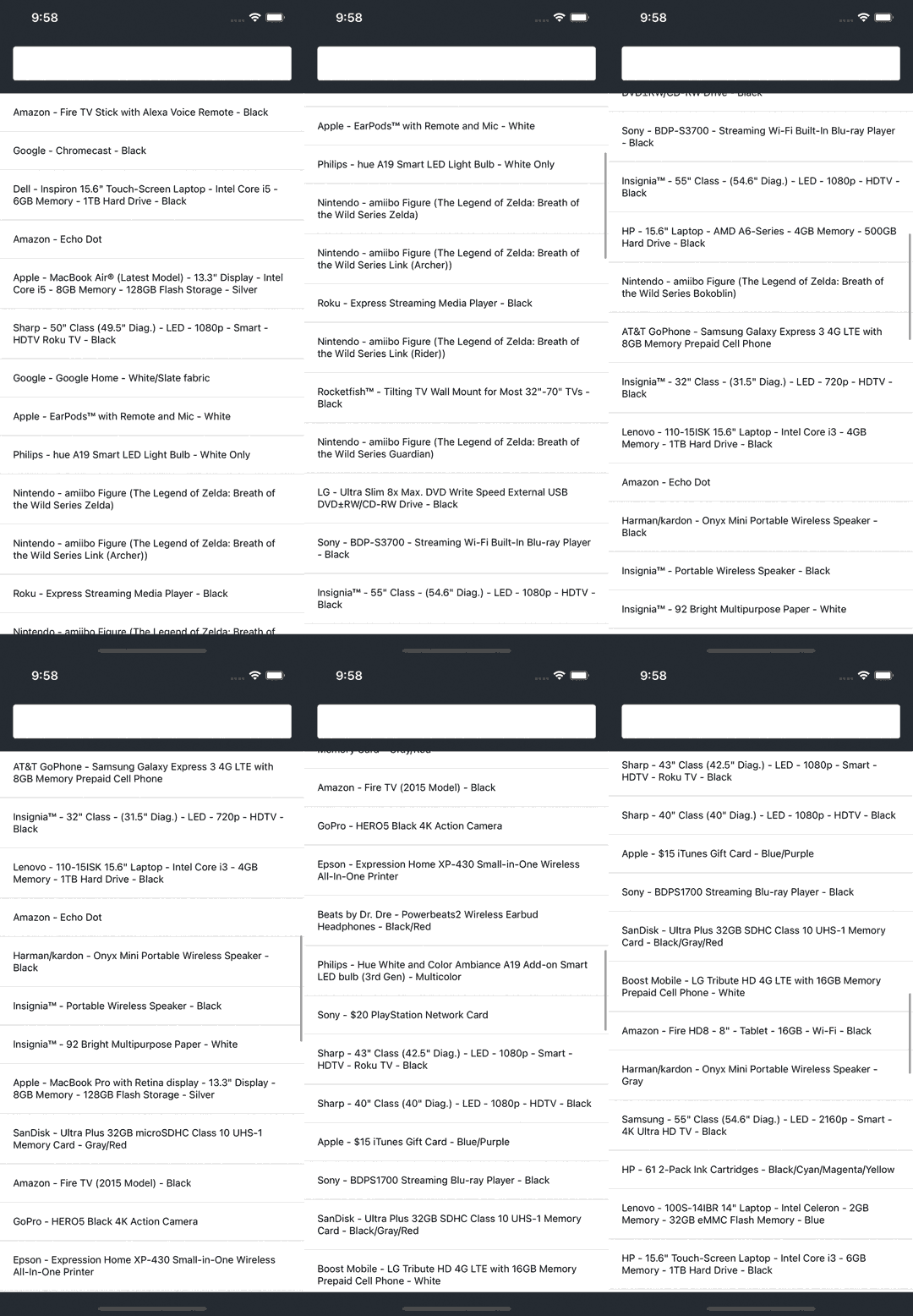
When Algolia returns results, you want to list them in the UI.
A common way of dealing with lists on mobile devices is to display an "infinite list":
a list that loads more results when users scroll to the bottom of the screen.
To do this, use the [`useInfiniteHits`](/doc/api-reference/widgets/infinite-hits/react#hook) Hook with the [`FlatList`](https://reactnative.dev/docs/flatlist) React Native component.
Then, add the custom `InfiniteHits` component in your app and pass it a custom `Hit` component to display each Algolia result.
```jsx InfiniteHits.js theme={"system"}
import React from "react";
import { StyleSheet, View, FlatList } from "react-native";
import { useInfiniteHits } from "react-instantsearch-core";
export function InfiniteHits({ hitComponent: Hit, ...props }) {
const { items, isLastPage, showMore } = useInfiniteHits({
...props,
escapeHTML: false,
});
return (
item.objectID}
ItemSeparatorComponent={() => }
onEndReached={() => {
if (!isLastPage) {
showMore();
}
}}
renderItem={({ item }) => (
)}
/>
);
}
const styles = StyleSheet.create({
separator: {
borderBottomWidth: 1,
borderColor: "#ddd",
},
item: {
padding: 18,
},
});
```
```jsx App.js theme={"system"}
// ...
import { InfiniteHits } from "./InfiniteHits";
// ...
export default function App() {
return (
);
}
function Hit({ hit }) {
return {hit.name};
}
// ...
```
Replace `INDEX_NAME` with the name of your index.
The search box remains visible, so users can update their without manually scrolling back up.
When users do this, reset the scroll position of the list so they can see the top results first.
To do this:
1. Assign a reference (`ref`) to the list for later use in your app.
2. Wrap the `InfiniteHits` component in [`forwardRef`](https://reactjs.org/docs/forwarding-refs.html). This lets you pass `ref` from the app to the list.
3. Listen for the query to change by waiting for an `onChange` callback on the custom `SearchBox`.
4. When the query changes, call [`FlatList.scrollToOffset`](https://reactnative.dev/docs/flatlist#scrolltooffset) to scroll the list to the correct position.
```jsx InfiniteHits.js theme={"system"}
import React, { forwardRef } from "react";
// ...
export const InfiniteHits = forwardRef(
({ hitComponent: Hit, ...props }, ref) => {
// ...
return (
);
},
);
// ...
```
```jsx SearchBox.js theme={"system"}
// ...
export function SearchBox({ onChange, ...props }) {
// ...
return (
{
setQuery(newValue);
onChange(newValue);
}}
/>
);
}
// ...
```
```jsx App.js theme={"system"}
import React, { useRef } from "react";
import {
FlatList,
SafeAreaView,
StatusBar,
StyleSheet,
Text,
View,
} from "react-native";
// ...
export default function App() {
const listRef = useRef < FlatList > null;
function scrollToTop() {
listRef.current?.scrollToOffset({ animated: false, offset: 0 });
}
return (
);
}
// ...
```
## Highlight matches
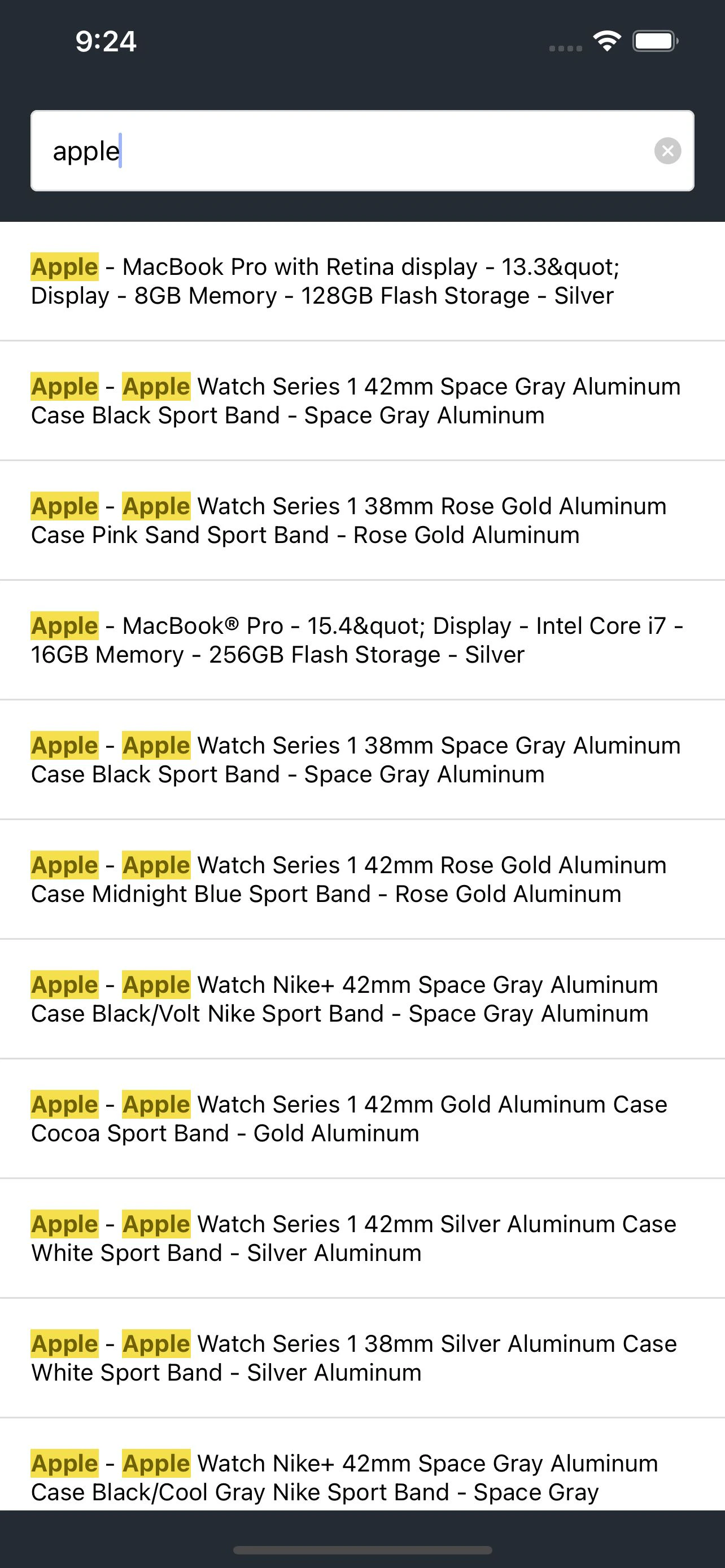
Algolia supports highlighting and returns the highlighted parts of a result in the response.
Build a custom `Highlight` component to highlight matches in each attribute.
The `instantsearch.js` library provides the necessary utilities to parse the highlighted parts from the Algolia response.
React InstantSearch uses InstantSearch.js behind the scenes, so you don't need to include it as a separate dependency.
Use the [`Text`](https://reactnative.dev/docs/text) component from React Native to represent each highlighted and non-highlighted part.
Then, use the custom `Highlight` component in your custom `Hit` component.
```js Highlight.js theme={"system"}
import React, { Fragment } from "react";
import { StyleSheet, Text } from "react-native";
import {
getHighlightedParts,
getPropertyByPath,
} from "instantsearch.js/es/lib/utils";
function HighlightPart({ children, isHighlighted }) {
return (
{children}
);
}
export function Highlight({ hit, attribute, separator = ", " }) {
const { value: attributeValue = "" } =
getPropertyByPath(hit._highlightResult, attribute) || {};
const parts = getHighlightedParts(attributeValue);
return (
<>
{parts.map((part, partIndex) => {
if (Array.isArray(part)) {
const isLastPart = partIndex === parts.length - 1;
return (
{part.map((subPart, subPartIndex) => (
{subPart.value}
))}
{!isLastPart && separator}
);
}
return (
{part.value}
);
})}
);
}
const styles = StyleSheet.create({
highlighted: {
fontWeight: "bold",
backgroundColor: "#f5df4d",
color: "#6f6106",
},
nonHighlighted: {
fontWeight: "normal",
backgroundColor: "transparent",
color: "black",
},
});
```
```js App.js theme={"system"}
// ...
import { Configure, InstantSearch } from "react-instantsearch-core";
import { Highlight } from "./Highlight";
export default function App() {
// ...
return (
);
}
// ...
function Hit({ hit }) {
return (
);
}
// ...
```
Replace `INDEX_NAME` with the name of your index.
When users type a query, the UI highlights matches in each search result.
## Add a filter
A search box is a great way to refine a search experience,
but sometimes users need to narrow down the results to find what they're looking for in a specific category.
Use the [`useRefinementList`](/doc/api-reference/widgets/refinement-list/react#hook) Hook to items based on attributes such as brand,
size, or color.
Mobile devices have limited screen real estate.
Instead of displaying filters near the list of hits as you would on a desktop website,
mobile apps commonly set filters inside a modal.
With React Native, use the [`Modal`](https://reactnative.dev/docs/modal) component.
```js Filters.js theme={"system"}
import React from "react";
import {
Button,
StyleSheet,
SafeAreaView,
Modal,
Text,
TouchableOpacity,
View,
} from "react-native";
import {
useClearRefinements,
useCurrentRefinements,
useRefinementList,
} from "react-instantsearch-core";
export function Filters({ isModalOpen, onToggleModal, onChange }) {
const { items, refine } = useRefinementList({ attribute: "brand" });
const { canRefine: canClear, refine: clear } = useClearRefinements();
const { items: currentRefinements } = useCurrentRefinements();
const totalRefinements = currentRefinements.reduce(
(acc, { refinements }) => acc + refinements.length,
0,
);
return (
<>
Filters
{totalRefinements > 0 && (
{totalRefinements}
)}
Brand
{items.map((item) => {
return (
{
refine(item.value);
onChange();
}}
>
{item.label}
{item.count}
);
})}
);
}
const styles = StyleSheet.create({
container: {
padding: 18,
backgroundColor: "#ffffff",
},
title: {
alignItems: "center",
},
titleText: {
fontSize: 32,
},
list: {
marginTop: 32,
},
item: {
paddingVertical: 12,
flexDirection: "row",
justifyContent: "space-between",
borderBottomWidth: 1,
borderColor: "#ddd",
alignItems: "center",
},
itemCount: {
backgroundColor: "#252b33",
borderRadius: 24,
paddingVertical: 4,
paddingHorizontal: 8,
marginLeft: 4,
},
itemCountText: {
color: "#ffffff",
fontWeight: "800",
},
labelText: {
fontSize: 16,
},
filterListButtonContainer: {
flexDirection: "row",
},
filterListButton: {
flex: 1,
alignItems: "center",
marginTop: 18,
},
filtersButton: {
paddingVertical: 18,
flexDirection: "row",
justifyContent: "center",
alignItems: "center",
},
filtersButtonText: {
fontSize: 18,
textAlign: "center",
},
});
```
```js App.js theme={"system"}
import React, { useRef, useState } from "react";
import { Filters } from "./Filters";
// ...
export default function App() {
const [isModalOpen, setModalOpen] = useState(false);
// ...
return (
setModalOpen((isOpen) => !isOpen)}
onChange={scrollToTop}
/>
);
}
// ...
```
Replace `INDEX_NAME` with the name of your index.
Replace the `brand` attributes with one of your index's [faceting attributes](/doc/guides/managing-results/refine-results/faceting/how-to/declaring-attributes-for-faceting-with-dashboard).
The **Filters** button reveals filters in a modal that slides from the bottom.
It also uses the [`useCurrentRefinements`](/doc/api-reference/widgets/current-refinements/react#hook) and [`useClearRefinements`](/doc/api-reference/widgets/clear-refinements/react#hook) Hooks to display how many refinements are applied and let users clear them all at once.
## Next steps
With this tutorial, you've got a solid starting point for building dynamic search interfaces.
Some steps to improve the app are:
* [Search in multiple indices](/doc/guides/building-search-ui/ui-and-ux-patterns/multi-index-search/react) with [`Index`](/doc/api-reference/widgets/index-widget/react).
* Use a different component library like [Lottie React Native](https://github.com/lottie-react-native/lottie-react-native) or [React Native Elements](https://reactnativeelements.com/).
* Discover more Hooks by checking the [API reference](/doc/api-reference/widgets/react).
 The search box remains visible, so users can update their
  ## Add a filter
A search box is a great way to refine a search experience,
but sometimes users need to narrow down the results to find what they're looking for in a specific category.
Use the [`useRefinementList`](/doc/api-reference/widgets/refinement-list/react#hook) Hook to
## Add a filter
A search box is a great way to refine a search experience,
but sometimes users need to narrow down the results to find what they're looking for in a specific category.
Use the [`useRefinementList`](/doc/api-reference/widgets/refinement-list/react#hook) Hook to 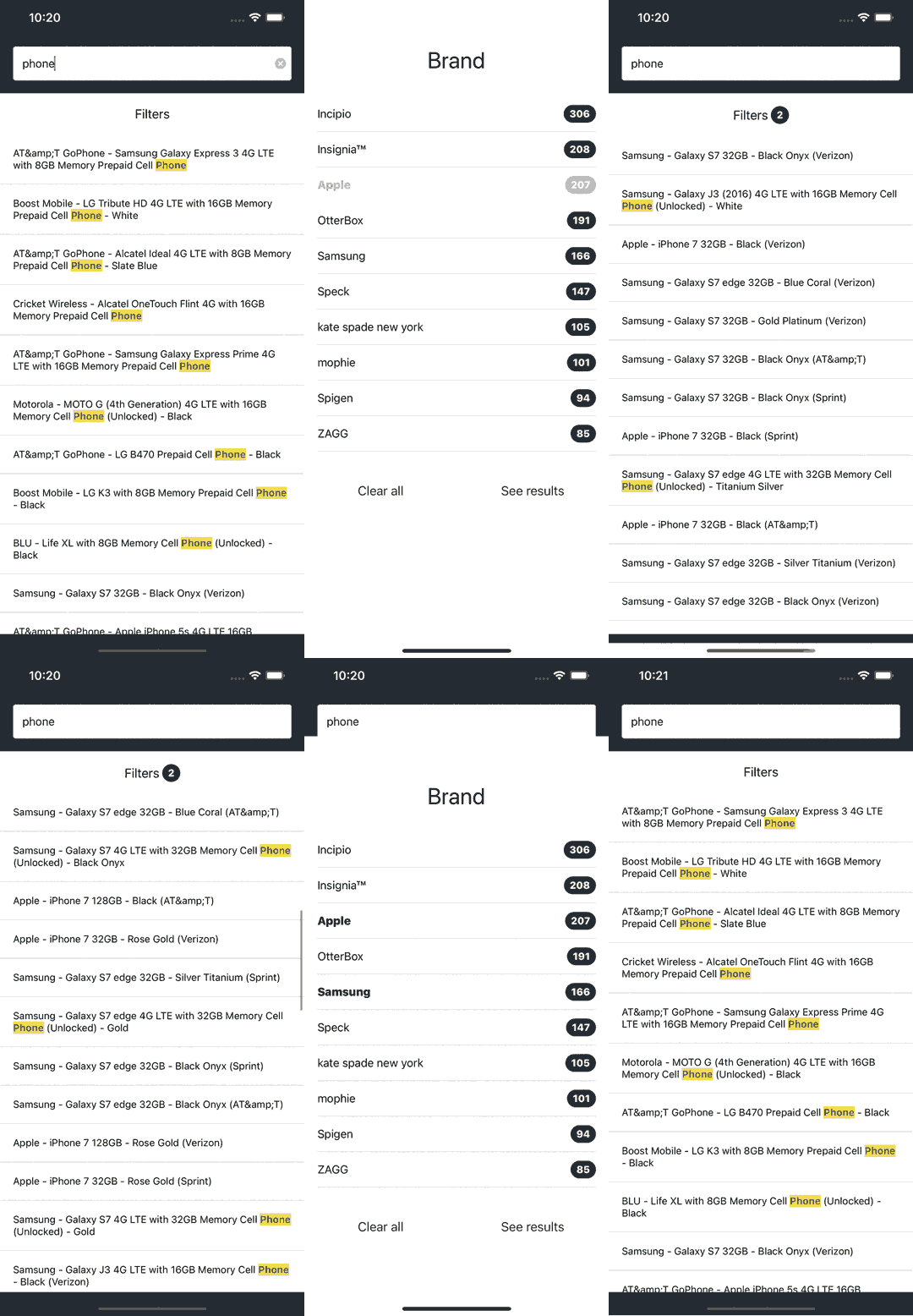 The **Filters** button reveals filters in a modal that slides from the bottom.
It also uses the [`useCurrentRefinements`](/doc/api-reference/widgets/current-refinements/react#hook) and [`useClearRefinements`](/doc/api-reference/widgets/clear-refinements/react#hook) Hooks to display how many refinements are applied and let users clear them all at once.
## Next steps
With this tutorial, you've got a solid starting point for building dynamic search interfaces.
Some steps to improve the app are:
* [Search in multiple indices](/doc/guides/building-search-ui/ui-and-ux-patterns/multi-index-search/react) with [`Index`](/doc/api-reference/widgets/index-widget/react).
* Use a different component library like [Lottie React Native](https://github.com/lottie-react-native/lottie-react-native) or [React Native Elements](https://reactnativeelements.com/).
* Discover more Hooks by checking the [API reference](/doc/api-reference/widgets/react).
The **Filters** button reveals filters in a modal that slides from the bottom.
It also uses the [`useCurrentRefinements`](/doc/api-reference/widgets/current-refinements/react#hook) and [`useClearRefinements`](/doc/api-reference/widgets/clear-refinements/react#hook) Hooks to display how many refinements are applied and let users clear them all at once.
## Next steps
With this tutorial, you've got a solid starting point for building dynamic search interfaces.
Some steps to improve the app are:
* [Search in multiple indices](/doc/guides/building-search-ui/ui-and-ux-patterns/multi-index-search/react) with [`Index`](/doc/api-reference/widgets/index-widget/react).
* Use a different component library like [Lottie React Native](https://github.com/lottie-react-native/lottie-react-native) or [React Native Elements](https://reactnativeelements.com/).
* Discover more Hooks by checking the [API reference](/doc/api-reference/widgets/react).