> ## Documentation Index
> Fetch the complete documentation index at: https://algolia.com/llms.txt
> Use this file to discover all available pages before exploring further.
# Configure Algolia for BigCommerce
> Configure sources for the Algolia BigCommerce integration.
A **source** is a combination of:
* An Algolia index name (must be unique)
* A BigCommerce channel (sources are per channel—each store can have multiple channels)
* A set of BigCommerce product data with currencies
You already set up a source during [installation](/doc/integration/bigcommerce/get-started/installation).
You can edit it and add or delete others.
## Trigger a full reindex
After [installing a BigCommerce source](/doc/integration/bigcommerce/get-started/installation),
you need to trigger a full reindex at least once to retrieve your products from BigCommerce.
You should also reindex if you change, add, or delete a source.
To trigger a full reindex:
1. Select **Reindex** for the source you want to reindex.
 2. To check the progress and reindexing progress,
see [Monitor BigCommerce indexing](/doc/integration/bigcommerce/indexing/monitoring-bigcommerce-indexing).
## Custom fields
To configure a source for custom fields:
1. For the source you want to configure, select **Options > Edit Source**.
2. Select **Custom Fields** and enter a comma-separated list of custom field names to index.
3. **Trigger a full reindex to complete**.
2. To check the progress and reindexing progress,
see [Monitor BigCommerce indexing](/doc/integration/bigcommerce/indexing/monitoring-bigcommerce-indexing).
## Custom fields
To configure a source for custom fields:
1. For the source you want to configure, select **Options > Edit Source**.
2. Select **Custom Fields** and enter a comma-separated list of custom field names to index.
3. **Trigger a full reindex to complete**.
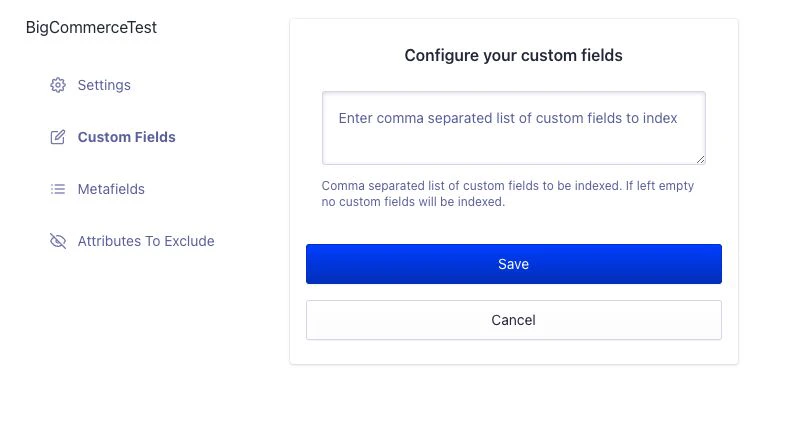 To use custom facets in your BigCommerce integration:
1. Add them as custom fields
2. Reindex your data.
3. Configure the [facets](/doc/integration/bigcommerce/search-settings/instantsearch#customize-facets) to display them on your InstantSearch results page.
Custom fields are indexed as JSON-encoded strings, as defined by the [BigCommerce API](https://developer.bigcommerce.com/docs/rest-catalog/products/custom-fields).
### Troubleshooting
* If a custom field doesn't appear, check that it's included in your Algolia index under [attributes for faceting](/doc/api-reference/api-parameters/attributesForFaceting).
* If you require a different data type, you can [transform the data](/doc/guides/sending-and-managing-data/send-and-update-your-data/how-to/transform-your-data-with-code) before indexing.
## Metafields
Metafields let you index custom data attached to your BigCommerce products or variants so you can make it searchable, filterable, or display it in Algolia.
Use metafields to store additional product information beyond the standard BigCommerce fields, such as technical specifications, custom labels, or other attributes.
### Configure metafields
1. For the source you want to configure, select **Options > Edit Source**.
2. Select **Metafields**.
3. Enter the **namespace** and **key** for each metafield you want to index. You can add:
* **Product Metafields** (applies to the product as a whole)
* **Variant Metafields** (applies to specific product variants, such as size or color)
4. [Trigger a full reindex](#trigger-a-full-reindex) to update your Algolia index with the new metafield data.
To use custom facets in your BigCommerce integration:
1. Add them as custom fields
2. Reindex your data.
3. Configure the [facets](/doc/integration/bigcommerce/search-settings/instantsearch#customize-facets) to display them on your InstantSearch results page.
Custom fields are indexed as JSON-encoded strings, as defined by the [BigCommerce API](https://developer.bigcommerce.com/docs/rest-catalog/products/custom-fields).
### Troubleshooting
* If a custom field doesn't appear, check that it's included in your Algolia index under [attributes for faceting](/doc/api-reference/api-parameters/attributesForFaceting).
* If you require a different data type, you can [transform the data](/doc/guides/sending-and-managing-data/send-and-update-your-data/how-to/transform-your-data-with-code) before indexing.
## Metafields
Metafields let you index custom data attached to your BigCommerce products or variants so you can make it searchable, filterable, or display it in Algolia.
Use metafields to store additional product information beyond the standard BigCommerce fields, such as technical specifications, custom labels, or other attributes.
### Configure metafields
1. For the source you want to configure, select **Options > Edit Source**.
2. Select **Metafields**.
3. Enter the **namespace** and **key** for each metafield you want to index. You can add:
* **Product Metafields** (applies to the product as a whole)
* **Variant Metafields** (applies to specific product variants, such as size or color)
4. [Trigger a full reindex](#trigger-a-full-reindex) to update your Algolia index with the new metafield data.
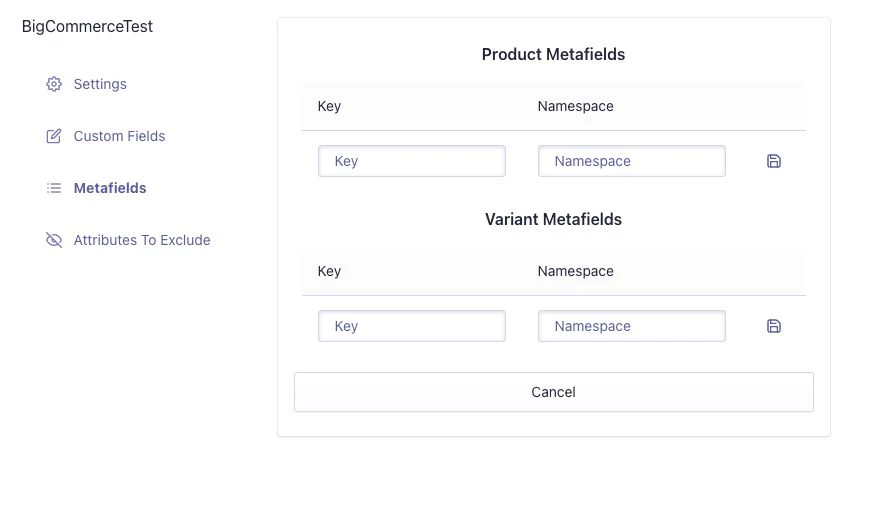 For example,
if you have a product metafield with namespace `specs` and key `material`,
enter those values to make the material information searchable and filterable in Algolia.
After reindexing, the selected metafields will be available in your Algolia index. You can use them for search, display, or as custom facets in InstantSearch.
### Limitations
* Only the metafields you specify are indexed. Others are ignored.
* If you add or remove metafields, you must reindex for changes to take effect.
* Metafields must exist in BigCommerce and be populated for products or variants to appear in Algolia with those fields.
* Metafields are indexed as JSON-encoded strings, as defined by the [BigCommerce API](https://developer.bigcommerce.com/docs/rest-catalog/products/metafields). If you need a different data type, use [transformations](/doc/guides/sending-and-managing-data/send-and-update-your-data/how-to/transform-your-data-with-code) to convert them before indexing.
## Attributes to exclude
**Attributes to exclude** lets you prevent specific product attributes from being indexed in Algolia. This is useful if you want to reduce index size, avoid exposing sensitive data, or remove irrelevant fields from search and filtering.
### Exclude attributes
1. For the source you want to configure, select **Options > Edit Source**.
2. Select **Attributes to Exclude**.
3. Enter a comma-separated list of attribute names you want to exclude from indexing (for example: `cost_price,upc,weight`).
For example,
if you have a product metafield with namespace `specs` and key `material`,
enter those values to make the material information searchable and filterable in Algolia.
After reindexing, the selected metafields will be available in your Algolia index. You can use them for search, display, or as custom facets in InstantSearch.
### Limitations
* Only the metafields you specify are indexed. Others are ignored.
* If you add or remove metafields, you must reindex for changes to take effect.
* Metafields must exist in BigCommerce and be populated for products or variants to appear in Algolia with those fields.
* Metafields are indexed as JSON-encoded strings, as defined by the [BigCommerce API](https://developer.bigcommerce.com/docs/rest-catalog/products/metafields). If you need a different data type, use [transformations](/doc/guides/sending-and-managing-data/send-and-update-your-data/how-to/transform-your-data-with-code) to convert them before indexing.
## Attributes to exclude
**Attributes to exclude** lets you prevent specific product attributes from being indexed in Algolia. This is useful if you want to reduce index size, avoid exposing sensitive data, or remove irrelevant fields from search and filtering.
### Exclude attributes
1. For the source you want to configure, select **Options > Edit Source**.
2. Select **Attributes to Exclude**.
3. Enter a comma-separated list of attribute names you want to exclude from indexing (for example: `cost_price,upc,weight`).
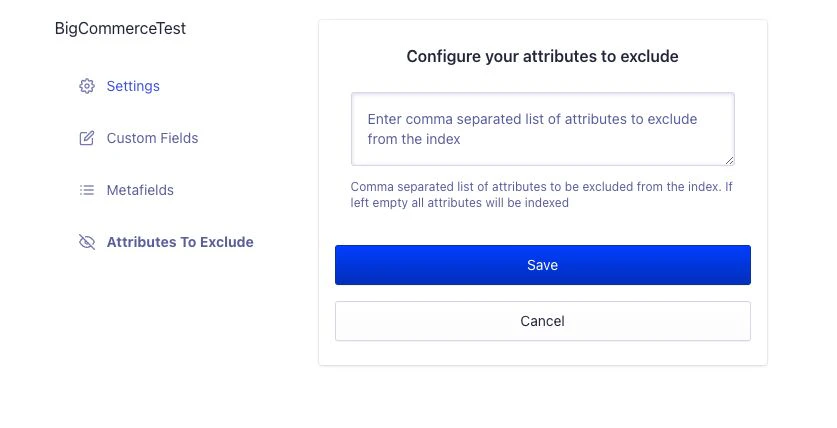 For example,\
to exclude the `cost_price` and `upc` attributes, enter:
`cost_price,upc`
After saving and reindexing,
the specified attributes will no longer be present in your Algolia index.
They also won't be searchable, filterable, or visible in search results.
### Limitations
* Excluded attributes are removed from all products in the source.
* You must reindex for changes to take effect.
* Excluding required attributes may affect search relevance or display if those fields are used in your InstantSearch configuration.
For example,\
to exclude the `cost_price` and `upc` attributes, enter:
`cost_price,upc`
After saving and reindexing,
the specified attributes will no longer be present in your Algolia index.
They also won't be searchable, filterable, or visible in search results.
### Limitations
* Excluded attributes are removed from all products in the source.
* You must reindex for changes to take effect.
* Excluding required attributes may affect search relevance or display if those fields are used in your InstantSearch configuration.