> ## Documentation Index
> Fetch the complete documentation index at: https://algolia.com/llms.txt
> Use this file to discover all available pages before exploring further.
# Get started with the Algolia CLI
> Manage your Algolia resources directly from the command line.
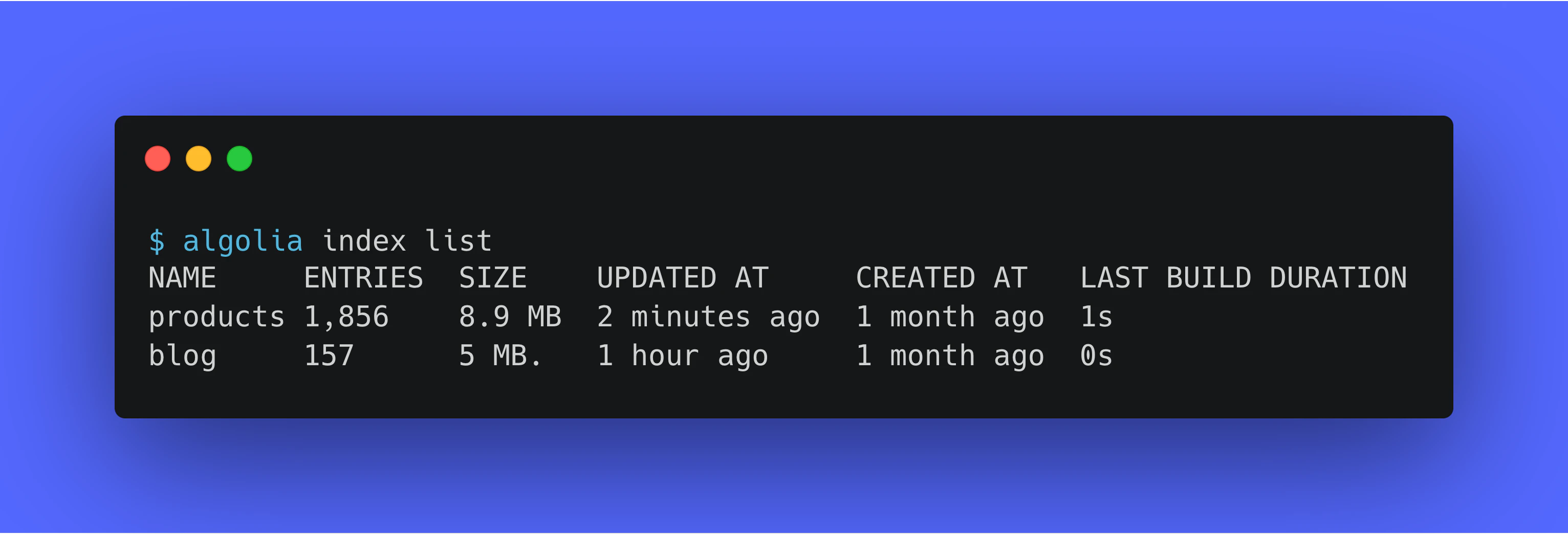 The Algolia CLI lets you work with Algolia's APIs from your terminal.
It's great for interactive commands, scripts, and continuous integration workflows.
## Before you begin
You'll need an Algolia account.
If you don't have one yet, create one from the CLI while you [sign in](#sign-in).
## Install the Algolia CLI
You can install the CLI with your favorite package manager,
or download binaries from the [Releases](https://github.com/algolia/cli/releases) page in the GitHub repository.
The CLI runs on macOS, Linux, and Windows,
on both AMD64 and ARM64 platforms.
If you have [Node.js](https://nodejs.org) installed,
you can run the CLI with `npx` — no installation required:
```sh icon=square-terminal theme={"system"}
npx @algolia/cli --help
```
Or install it globally with npm:
```sh icon=square-terminal theme={"system"}
npm install -g @algolia/cli
```
The Algolia CLI is available on [Homebrew](https://brew.sh).
To install it, run:
```sh icon=square-terminal theme={"system"}
brew install algolia
```
Or download the latest archive for your Mac: `algolia_*_macOS_*.tar.gz`.
Unpack it by running `tar xf algolia_*_macOS_*.tar.gz`.
The Algolia CLI is available as DEB and RPM packages.
Download the appropriate `*.deb` and `*.rpm` file for your platform.
To install it, run:
```sh icon=square-terminal theme={"system"}
# DEB-based distributions
sudo dpkg -i /path/to/algolia_*.deb
# RPM-based distributions
sudo rpm -i /path/to/algolia_*.rpm
```
Or download the latest archive for Linux: `algolia_*_linux_*.tar.gz`.
Unpack it by running `tar xf algolia_*_linux_*.tar.gz`.
The Algolia CLI is available for the [Chocolatey](https://chocolatey.org) package manager.
To install it, run:
```powershell icon="square-terminal" theme={"system"}
choco install algolia
```
Or download the latest archive: `algolia_*_windows_*.zip`.
Then [unpack it](https://support.microsoft.com/en-us/windows/zip-and-unzip-files-8d28fa72-f2f9-712f-67df-f80cf89fd4e5).
If you're using the Windows Subsystem for Linux (WSL),
follow the instructions for [Linux](#linux).
## Sign in
Authenticate the CLI with your Algolia account.
This opens your browser so you can sign in or create a new account:
```sh icon=square-terminal theme={"system"}
algolia auth login
```
If you're running the CLI in an environment without a browser, such as an SSH session or container, run `algolia auth login --no-browser`.
The CLI prints an authorization URL and waits for you to complete the sign-in process.
To check your authentication status, run `algolia auth status`.
## Select an application
Set the application for your commands:
```sh icon=square-terminal theme={"system"}
algolia application list # list your applications
algolia application select # pick the current one interactively
```
`algolia application select` creates a local profile and an API key for the application if needed,
so you don't have to pass `--application-id` or `--api-key` with every command.
## Index and search your first records
With an application selected, import some records and search them:
```sh icon=square-terminal theme={"system"}
algolia objects import MOVIES -F movies.ndjson # import newline-delimited JSON records
algolia search MOVIES --query "toy story" # search the index
```
## Explore other commands
Type `algolia` to list the available commands.
Add `--help` to any command to get more information about it and its options.
For example, to list all indices in your Algolia application, run:
```sh icon=square-terminal theme={"system"}
algolia indices list
```
If you're running the CLI in a CI pipeline or script, or if you prefer to manage credentials yourself, use the `--application-id` and `--api-key` options or environment variables instead of signing in.
For more information, see [Authentication](/doc/tools/cli/authentication).
## Next steps
* [Set up command completion](/doc/tools/cli/completion). Enable shell completion for Bash, Zsh, Fish, or PowerShell.
* [Authenticate CLI commands](/doc/tools/cli/authentication). Sign in with OAuth, or use environment variables and command-line flags for your credentials.
* [Use the CLI in automation](/doc/tools/cli/automation). Tips for running the CLI in scripts, CI, and agent workflows with structured output, exit codes, and dry runs.
* [Opt out of telemetry collection](/doc/tools/cli/telemetry). Learn what the CLI reports and how to turn off telemetry and update checks.
* [Usage examples for the Algolia CLI](/doc/tools/cli/examples). Follow recipes for importing, exporting, comparing, and copying Algolia data.
The Algolia CLI lets you work with Algolia's APIs from your terminal.
It's great for interactive commands, scripts, and continuous integration workflows.
## Before you begin
You'll need an Algolia account.
If you don't have one yet, create one from the CLI while you [sign in](#sign-in).
## Install the Algolia CLI
You can install the CLI with your favorite package manager,
or download binaries from the [Releases](https://github.com/algolia/cli/releases) page in the GitHub repository.
The CLI runs on macOS, Linux, and Windows,
on both AMD64 and ARM64 platforms.
If you have [Node.js](https://nodejs.org) installed,
you can run the CLI with `npx` — no installation required:
```sh icon=square-terminal theme={"system"}
npx @algolia/cli --help
```
Or install it globally with npm:
```sh icon=square-terminal theme={"system"}
npm install -g @algolia/cli
```
The Algolia CLI is available on [Homebrew](https://brew.sh).
To install it, run:
```sh icon=square-terminal theme={"system"}
brew install algolia
```
Or download the latest archive for your Mac: `algolia_*_macOS_*.tar.gz`.
Unpack it by running `tar xf algolia_*_macOS_*.tar.gz`.
The Algolia CLI is available as DEB and RPM packages.
Download the appropriate `*.deb` and `*.rpm` file for your platform.
To install it, run:
```sh icon=square-terminal theme={"system"}
# DEB-based distributions
sudo dpkg -i /path/to/algolia_*.deb
# RPM-based distributions
sudo rpm -i /path/to/algolia_*.rpm
```
Or download the latest archive for Linux: `algolia_*_linux_*.tar.gz`.
Unpack it by running `tar xf algolia_*_linux_*.tar.gz`.
The Algolia CLI is available for the [Chocolatey](https://chocolatey.org) package manager.
To install it, run:
```powershell icon="square-terminal" theme={"system"}
choco install algolia
```
Or download the latest archive: `algolia_*_windows_*.zip`.
Then [unpack it](https://support.microsoft.com/en-us/windows/zip-and-unzip-files-8d28fa72-f2f9-712f-67df-f80cf89fd4e5).
If you're using the Windows Subsystem for Linux (WSL),
follow the instructions for [Linux](#linux).
## Sign in
Authenticate the CLI with your Algolia account.
This opens your browser so you can sign in or create a new account:
```sh icon=square-terminal theme={"system"}
algolia auth login
```
If you're running the CLI in an environment without a browser, such as an SSH session or container, run `algolia auth login --no-browser`.
The CLI prints an authorization URL and waits for you to complete the sign-in process.
To check your authentication status, run `algolia auth status`.
## Select an application
Set the application for your commands:
```sh icon=square-terminal theme={"system"}
algolia application list # list your applications
algolia application select # pick the current one interactively
```
`algolia application select` creates a local profile and an API key for the application if needed,
so you don't have to pass `--application-id` or `--api-key` with every command.
## Index and search your first records
With an application selected, import some records and search them:
```sh icon=square-terminal theme={"system"}
algolia objects import MOVIES -F movies.ndjson # import newline-delimited JSON records
algolia search MOVIES --query "toy story" # search the index
```
## Explore other commands
Type `algolia` to list the available commands.
Add `--help` to any command to get more information about it and its options.
For example, to list all indices in your Algolia application, run:
```sh icon=square-terminal theme={"system"}
algolia indices list
```
If you're running the CLI in a CI pipeline or script, or if you prefer to manage credentials yourself, use the `--application-id` and `--api-key` options or environment variables instead of signing in.
For more information, see [Authentication](/doc/tools/cli/authentication).
## Next steps
* [Set up command completion](/doc/tools/cli/completion). Enable shell completion for Bash, Zsh, Fish, or PowerShell.
* [Authenticate CLI commands](/doc/tools/cli/authentication). Sign in with OAuth, or use environment variables and command-line flags for your credentials.
* [Use the CLI in automation](/doc/tools/cli/automation). Tips for running the CLI in scripts, CI, and agent workflows with structured output, exit codes, and dry runs.
* [Opt out of telemetry collection](/doc/tools/cli/telemetry). Learn what the CLI reports and how to turn off telemetry and update checks.
* [Usage examples for the Algolia CLI](/doc/tools/cli/examples). Follow recipes for importing, exporting, comparing, and copying Algolia data.