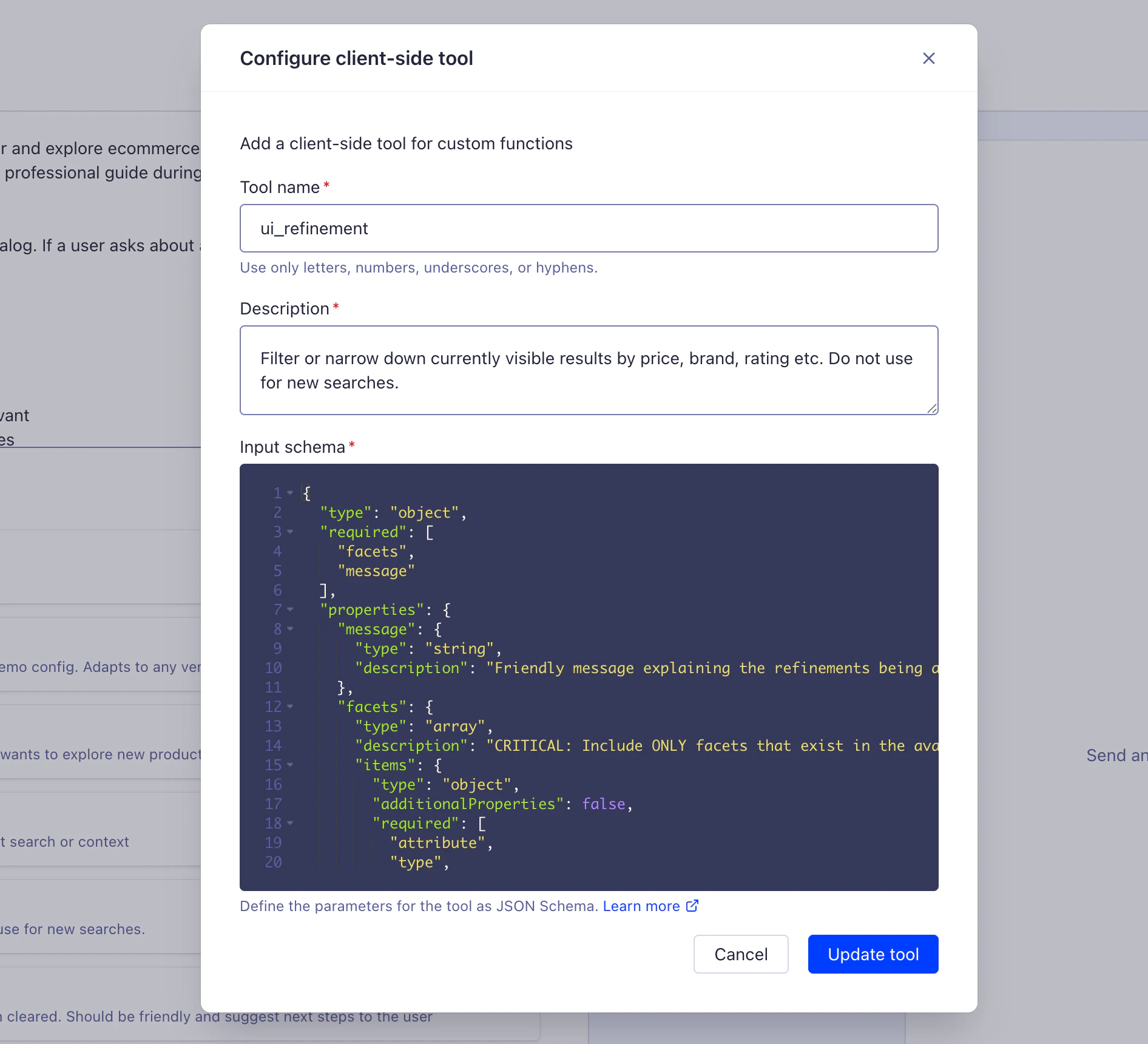
Run custom functions in your app to access user data, trigger UI updates, and perform authenticated actions.
Runs custom functions in your app (frontend or backend) to access user data, trigger UI updates, and perform authenticated actions.
Client-side tools follow the OpenAI Function Calling specification.For example, for the query “What’s in my cart?”,
the agent calls get_user_cart function in your app, retrieves the user’s shopping cart data, and responds with personalized information about items, quantities, and total price.
Security: run in user’s security context with proper authentication
Flexibility: use existing frontend or backend APIs without additional infrastructure
Client-side context: access local storage, session data, and other browser-specific states
Security: Runs in your app’s security context.
Agent Studio never stores credentials.
Always validate authentication, sanitize inputs, and enforce access control.
For more information, see Client-side security patterns.
You must configure client-side tools in two places:
{ "type": "function", "function": { "name": "add_to_cart", "description": "Adds a product to the user's shopping cart. Use this when the user wants to purchase an item.", "strict": true, "parameters": { "type": "object", "properties": { "productId": { "type": "string", "description": "The Algolia objectID of the product to add" }, "quantity": { "type": ["integer", "null"], "description": "Number of items to add (defaults to 1 if not specified)", "minimum": 1, "maximum": 99 } }, "required": ["productId", "quantity"], "additionalProperties": false } }}
Instead of returning data for the agent to describe in text, a client-side tool can return structured data that your frontend renders as UI.
The agent decides what to show, and your app decides how to render it.Define a render_component tool whose parameters describe the component to render and the items it needs:
JSON
{ "type": "function", "function": { "name": "render_component", "description": "Renders a UI component in the app from a typed payload. Use this to show structured results, such as a product carousel, instead of describing them in text.", "strict": true, "parameters": { "type": "object", "properties": { "component": { "type": "string", "enum": ["product_carousel", "product_grid", "comparison_table"], "description": "The component the frontend renders" }, "items": { "type": "array", "description": "Records to render, each with the fields the component needs", "items": { "type": "object", "properties": { "objectID": { "type": "string", "description": "The Algolia objectID" }, "title": { "type": "string", "description": "Display title" }, "price": { "type": "number", "description": "Item price" }, "image": { "type": "string", "description": "Image URL" } }, "required": ["objectID", "title", "price", "image"], "additionalProperties": false } } }, "required": ["component", "items"], "additionalProperties": false } }}
The round trip works like this:
The user asks to compare or browse products.
The agent searches with the Algolia Search tool, then calls render_component with a component and the matching items.
Your frontend receives the tool call, renders the named component, and returns a confirmation as the tool result.
The agent continues the conversation, referring to what the user now sees.
Render the payload in your frontend, then send the result back to the agent:
JavaScript
async function handleToolCall(toolCall) { const { name, arguments: args } = toolCall.function; const params = JSON.parse(args); if (name === 'render_component') { // Render the named component with the provided items renderComponent(params.component, params.items); return { tool_call_id: toolCall.id, output: JSON.stringify({ success: true, rendered: params.component, itemCount: params.items.length }) }; } throw new Error(`Unknown tool: ${name}`);}
A structured error response is a successful tool call: the agent reads the payload and explains it.
When the tool itself can’t run at all, report a failure instead, so the chat shows it and the turn ends.With the InstantSearch chat widget, onToolCall reports a failure in three ways:
Throw or reject. The chat settles the tool call with the error’s message.
Call addToolResult({ state: 'output-error', errorText }) for a message you control.
Do nothing before the tool’s timeout elapses, 20 seconds by default. The chat aborts the handler’s signal and settles the tool call itself.
The chat renders the error text in the conversation and lets the agent respond to it.
Pass the signal your handler receives to any fetch you make, so work the chat has given up on doesn’t keep running.For the full lifecycle, see the tools option of the chat widget reference for React or JavaScript.
function validateAndSanitize(args) { const parsed = JSON.parse(args); // Validate productId format if (!/^[a-zA-Z0-9_-]+$/.test(parsed.productId)) { throw new Error("Invalid productId format"); } // Sanitise quantity if (parsed.quantity < 1 || parsed.quantity > 99) { throw new Error("Quantity must be between 1 and 99"); } return parsed;}
// Bad: returns full user object with sensitive fieldsreturn JSON.stringify(user);// Good: return only necessary fieldsreturn JSON.stringify({ name: user.name, email: user.email, // Password, tokens, and so on are excluded});