

Key capabilities
Key capabilities
- External integrations: connect to weather APIs, CRM platforms, inventory systems, or payment processors
- Algolia MCP Server: share your Algolia indices across multiple AI platforms with centralized configuration
- Multi-tenant support: override authentication tokens at request time for per-user credentials
- Tool filtering: filter, rename, and require approval for exposed tools
- Secure storage: automatic credential encryption at rest
- Local development:
use
ngrokto expose local MCP servers during development - Timeout protection: 10-second timeout for reliable performance
Algolia encrypts credentials before storing them.
It also supports runtime header overrides, which lets you use different credentials in multi-tenant apps.
For more information, see MCP security.
MCP servers
- Algolia MCP Server: a pre-configured server that exposes your Algolia indices across multiple AI platforms. Create instances from the Algolia dashboard . For more information, see Algolia MCP Server
- Third-party MCP servers: connect to external services like weather APIs, CRM platforms, inventory systems, or custom APIs. Browse the official MCP registry for pre-built servers.
MCP tools use the Streamable HTTP transport method.
STDIO and SSE aren’t supported.
Connect MCP tools to your agent
- From the dashboard
- With the API
1
Prepare your MCP server
For Algolia MCP Server:
- Go to the
- Click Create MCP server
- Select the indices you want to expose (for example,
products,articles) - Add descriptions to help the AI choose the correct
- Click Save
- Copy the generated MCP server URL (format:
https://{APP_ID}.algolia.net/mcp/1/{UNIQUE_ID}/mcp)
- Find a server in the official MCP registry
- Build your own MCP server following the MCP specification
-
For local development, use
ngrokto expose your local MCP server with a public URL:Command linengrokgenerates a public URL (for example,https://abc123.ngrok.io) that you can use in Agent Studio.
2
Add MCP tool to your agent
From the in the Algolia dashboard:
- Click Add tool > MCP Tool
-
Configure the MCP server connection:
- Name: unique identifier (no spaces, alphanumeric, underscores, and hyphens only)
- URL: your MCP server HTTP streaming endpoint
- Algolia MCP:
https://{APP_ID}.algolia.net/mcp/1/{UNIQUE_ID}/mcp - External: your MCP server URL (for example,
https://weather-api.example.com/mcp)
- Algolia MCP:
- Authorization token (optional): JWT bearer token for authentication
- Algolia MCP: use the format
{APP_ID}:{SEARCH_API_KEY} - External APIs: your API key or token as provided by the service
- Algolia MCP: use the format
- Click Connect to fetch available tools from the MCP server
3
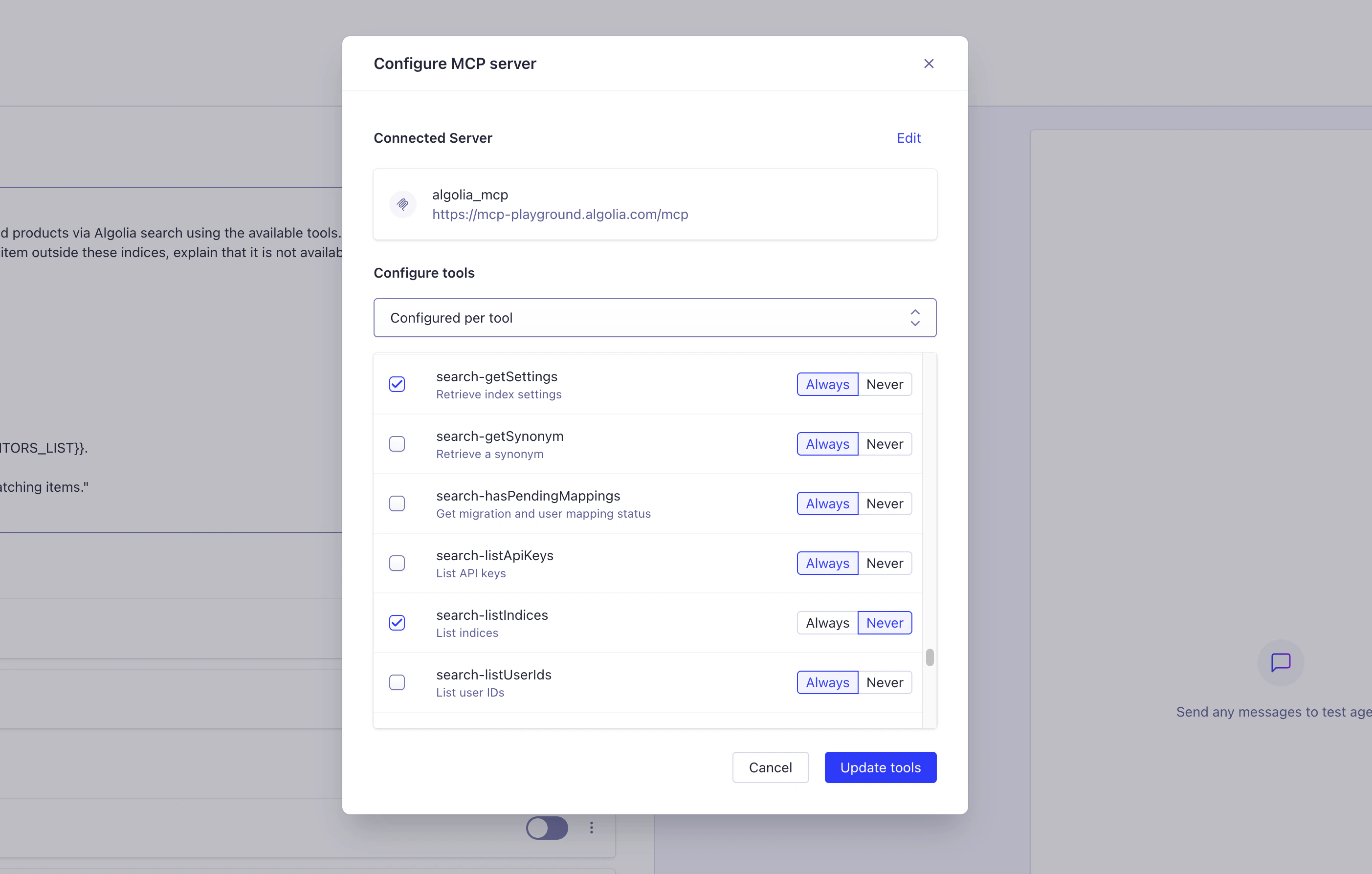
Select tools and set approval level
Once connected, the dashboard displays all available tools from the MCP server:
-
Select tools: choose which tools to enable for your agent
- Select all tools with one click
- Select specific tools individually
-
Set approval level: configure how the agent uses these tools
- Never require approval: agent can call tools automatically (recommended for most use cases)
- Always require approval: user must approve each tool call before it runs (useful for sensitive operations).
This sets
requiresApproval: truein the tool configuration.
- Click Add tools to complete the configuration
Configure tool approval
SetrequiresApproval: true on individual MCP tools to pause execution and prompt the user for approval before the tool runs.
The approval prompt shows the tool name, arguments, and description.
Use tool approval for operations that:
- Read or modify sensitive data (customer information, financial records, personal details)
- Change system configuration (update settings, modify indices)
- Perform destructive actions (delete records, clear data)
- Access restricted resources (admin endpoints, internal APIs)
Configuration
JSON
How approval works
The approval flow requires two requests to the completions endpoint:- Send the user message
- Receive the approval request
Send the user message
Command line
Receive the approval request
When the agent attempts to call a tool that requires approval, the stream pauses and returns an approval request. The format depends on which AI SDK compatibility mode you’re using:- AI SDK v4
- AI SDK v5
9 and includes:The stream then ends with finish reason
tool-approval-required (codes e and d).Submit the approval decision
Send a new request with the full conversation history and approval decisions:Command line
messages array must include the full conversation history,
including the pending approval request from step 2.
When you approve a tool, the server executes it and continues the conversation.
When you reject a tool, the agent receives an error and tells the user the action was declined.
To reject a tool, set approved to false (you still need to include the full messages array):
JSON
Approve multiple tools at once
When the agent calls multiple tools that require approval in one turn, all requests appear in the same stream. Submit all decisions in a single request with the full conversation history:JSON