InstantSearch.css provides a set of themes to style your search experiences with minimal effort. The themes are designed to be customizable through CSS variables (CSS custom properties), allowing you to match your brand identity while maintaining the core layout and features.
CSS variables are currently only supported for the autocomplete widget.

Loading themes

InstantSearch.css includes two main themes:
  • satellite.css - A complete theme with modern styling
  • algolia.css - Algolia-branded theme
Both themes include reset.css, a minimal reset theme that provides base styles.

Use a CDN

The themes are available on jsDelivr:
HTML
<!-- Satellite theme -->
<link
  rel="stylesheet"
  href="https://cdn.jsdelivr.net/npm/instantsearch.css@8.5.1/themes/satellite-min.css"
  integrity="sha256-woeV7a4SRDsjDc395qjBJ4+ZhDdFn8AqswN1rlTO64E="
  crossorigin="anonymous"
/>

<!-- Or Algolia theme -->
<!-- <link
  rel="stylesheet"
  href="https://cdn.jsdelivr.net/npm/instantsearch.css@8.5.1/themes/algolia-min.css"
  integrity="sha256-uL8pCH+GkSJ+e7GN8p3sV0I450htMMjSlgJpp3gjwNQ="
  crossorigin="anonymous"
/> -->

Using npm

npm install instantsearch.css
Then import it in your Vue app:
JavaScript
// In your main.js or App.vue
// Satellite theme
import 'instantsearch.css/themes/satellite.css';

// Or Algolia theme
// import 'instantsearch.css/themes/algolia.css';

Loading individual component styles

If you only need specific components, you can import their styles individually to reduce bundle size. This is currently available for the autocomplete component:
JavaScript
// Import only autocomplete component styles
import 'instantsearch.css/components/autocomplete.css';

// Or import the minified version
// import 'instantsearch.css/components/autocomplete-min.css';
Individual component styles include all CSS variables and theming capabilities of the full themes. You can still customize them using the same CSS variable overrides.

Development tools

InstantSearch.css provides developer tools that help you customize CSS variables visually in your browser. The developer tools display an interactive panel where you can:
  • Modify CSS variables in real-time
  • Toggle between theme modes (Auto, Light, Dark)
  • Export your customized variables to clipboard
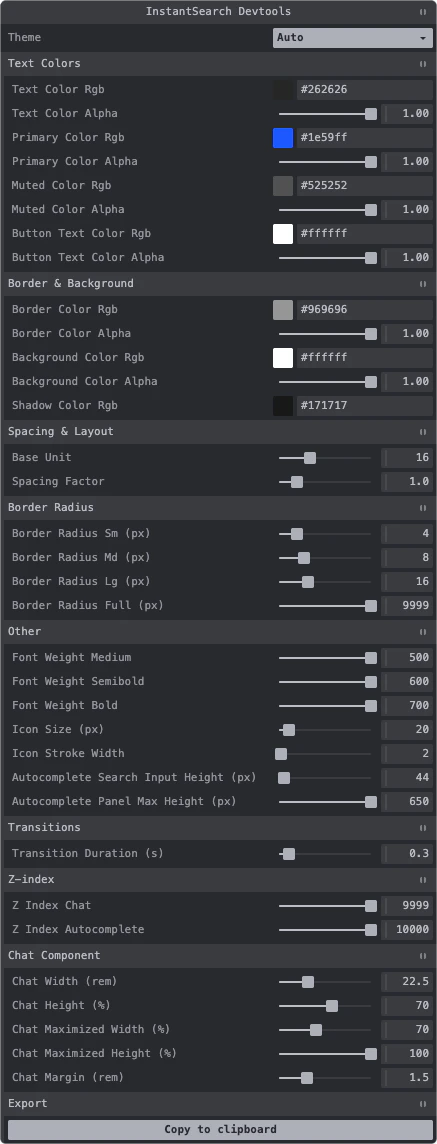
InstantSearch.css developer tools

Use the developer tools

Import the developer tools in your Vue app:
JavaScript
// In your main.js or App.vue
import 'instantsearch.css/devtools/inject';
The developer tools panel will appear in the bottom-left corner of your browser, allowing you to interactively customize colors, spacing, typography, and more.
The developer tools are intended for development only. Don’t include them in your production build.

Programmatic usage

You can also create the developer tools programmatically with custom options:
JavaScript
import { createInstantSearchDevtools } from 'instantsearch.css/devtools';

createInstantSearchDevtools({
  // Optional: custom container
  container: document.getElementById('devtools'),

  // Optional: custom styling
  style: {
    position: 'fixed',
    top: '1rem',
    right: '1rem',
    zIndex: '1000',
  },
});

Customization example

You can override any CSS variable to match your brand:
CSS
:root {
  /* Brand colors */
  --ais-primary-color-rgb: 124, 58, 237;

  /* Spacing */
  --ais-spacing-factor: 1.5;
}

Dark mode

The themes support dark mode in two ways:

Using data-theme attribute

Vue
<template>
  <div data-theme="dark">
    <ais-instant-search
      :search-client="searchClient"
      index-name="instant_search"
    >
      <!-- Your widgets -->
    </ais-instant-search>
  </div>
</template>

Using CSS class

Vue
<template>
  <div class="dark">
    <ais-instant-search
      :search-client="searchClient"
      index-name="instant_search"
    >
      <!-- Your widgets -->
    </ais-instant-search>
  </div>
</template>
Both approaches automatically adjust the following variables:
CSS
:root[data-theme='dark'],
.dark {
  /* Text colors */
  --ais-text-color-rgb: 255, 255, 255;
  --ais-primary-color-rgb: 110, 160, 255;
  --ais-muted-color-rgb: 190, 190, 190;
  --ais-button-text-color-rgb: 255, 255, 255;

  /* Border color */
  --ais-border-color-rgb: 100, 100, 100;

  /* Background color */
  --ais-background-color-rgb: 38, 38, 38;

  /* Shadow color */
  --ais-shadow-color-rgb: 0, 0, 0;
}

Custom dark mode colors

You can override dark mode colors:
CSS
:root[data-theme='dark'],
.dark {
  --ais-primary-color-rgb: 147, 197, 253;
  --ais-background-color-rgb: 15, 23, 42;
}

Complete variable reference

For a complete list of all available CSS variables with detailed descriptions, see the tables below:

Text colors

VariableDefaultDescription
--ais-text-color-rgb38, 38, 38RGB values for the base text color
--ais-text-color-alpha1Alpha value for the base text color
--ais-primary-color-rgb30, 89, 255RGB values for the accent color
--ais-primary-color-alpha1Alpha value for the accent color
--ais-muted-color-rgb82, 82, 82RGB values for muted/secondary text
--ais-muted-color-alpha1Alpha value for muted/secondary text
--ais-button-text-color-rgb255, 255, 255RGB values for button text
--ais-button-text-color-alpha1Alpha value for button text

Border, background, and shadow colors

VariableDefaultDescription
--ais-border-color-rgb150, 150, 150RGB values for borders
--ais-border-color-alpha1Alpha value for borders
--ais-background-color-rgb255, 255, 255RGB values for backgrounds
--ais-background-color-alpha1Alpha value for backgrounds
--ais-shadow-color-rgb23, 23, 23RGB values for shadow colors

Spacing

VariableDefaultDescription
--ais-base-unit16Base unit value to calculate font sizes and spacing
--ais-spacing-factor1 (tap: 1.2)Multiplier for spacing calculations
--ais-spacingcalculatedComputed spacing value

Typography

VariableDefaultDescription
--ais-font-size16pxBase font size derived from --ais-base-unit
--ais-font-weight-medium500Medium font weight
--ais-font-weight-semibold600Semibold font weight
--ais-font-weight-bold700Bold font weight

Icons

VariableDefaultDescription
--ais-icon-size20pxIcon size
--ais-icon-stroke-width1.6Icon stroke width

Shadows

VariableDefaultDescription
--ais-shadow-sm0px 0px 0px 1px rgba(..., 0.05), 0px 1px 3px 0px rgba(..., 0.25)Small shadow for subtle depth
--ais-shadow-md0px 0px 0px 1px rgba(..., 0.05), 0px 4px 8px -2px rgba(..., 0.25)Medium shadow for cards
--ais-shadow-lg0 0 0 1px rgba(..., 0.05), 0 6px 16px -4px rgba(..., 0.15)Large shadow for modals

Border radius

VariableDefaultDescription
--ais-border-radius-sm4pxSmall border radius
--ais-border-radius-md8pxMedium border radius
--ais-border-radius-lg16pxLarge border radius
--ais-border-radius-full9999pxFull border radius for pills

Transitions

VariableDefaultDescription
--ais-transition-duration0.3sDuration for transitions
--ais-transition-timing-functioncubic-bezier(0.4, 0, 0.2, 1)Timing function for transitions

Z-index

VariableDefaultDescription
--ais-z-index-chat9999Z-index for chat component
--ais-z-index-autocomplete10000Z-index for autocomplete component

Component-specific

Chat component

VariableDefaultDescription
--ais-chat-width22.5remDefault width of chat panel
--ais-chat-height70%Default height of chat panel
--ais-chat-maximized-width70%Width when maximized
--ais-chat-maximized-height100%Height when maximized
--ais-chat-margin1.5remMargin around chat panel
--ais-chat-carousel-item-widthcalc(var(--ais-spacing) * 10)Width of carousel items

Autocomplete component

VariableDefaultDescription
--ais-autocomplete-search-input-height44pxHeight of search input
--ais-autocomplete-panel-max-height650pxMaximum height of autocomplete panel
Last modified on March 23, 2026