

etc/module.xml file in your Magento installation:
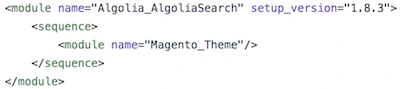

To update the extension, read the upgrading guide.
Understand how your Magento configuration determines the number of indices to create
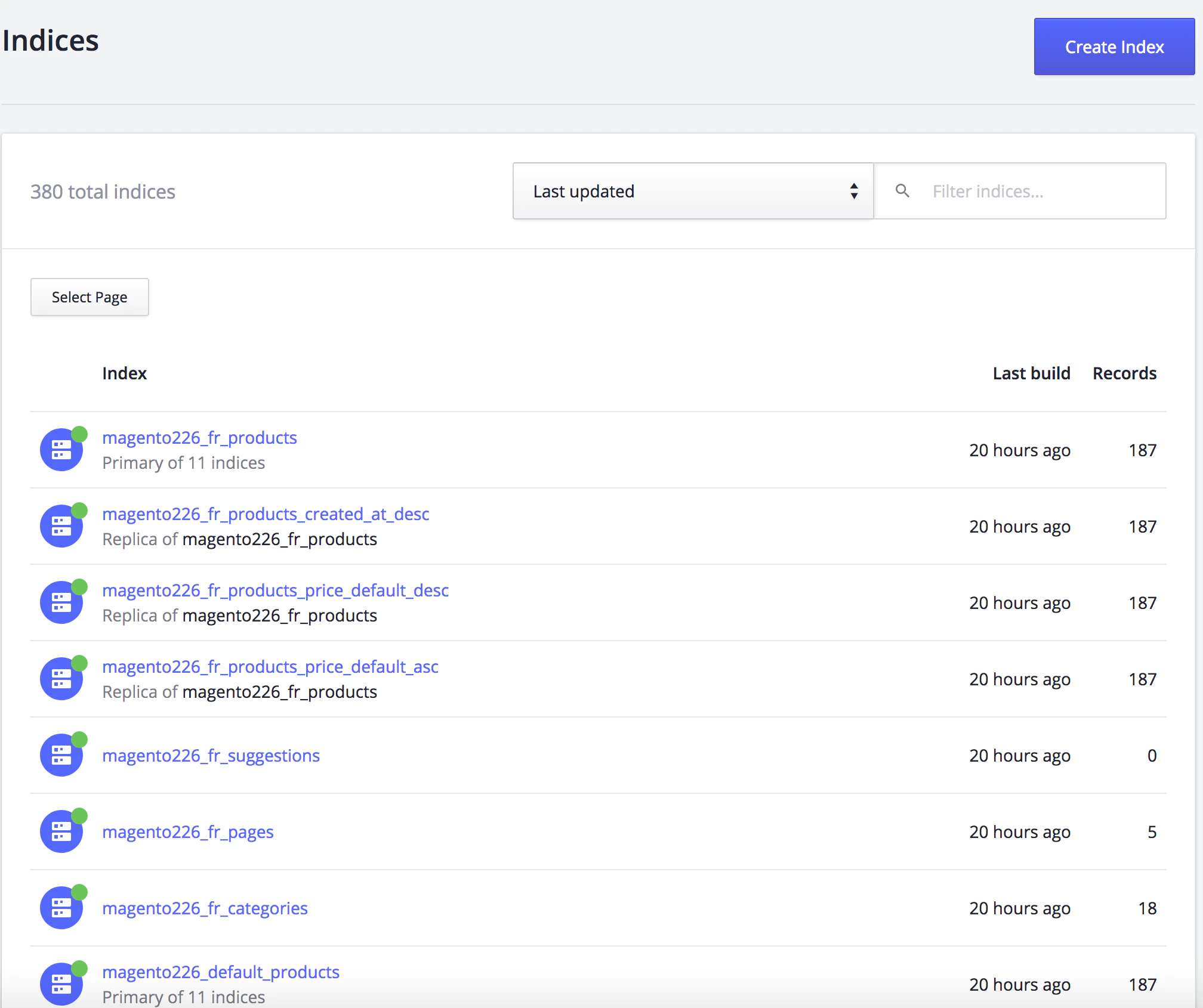
You must add your account credentials when setting up the extension for the first time. The extension will then automatically add all the indices your account requires. You can check which indices have been created from Algolia’s dashboard if you wish.Sorting
By default, the extension creates three replicas for each product . These replicas are directly related to the sorting configuration in the InstantSearch section.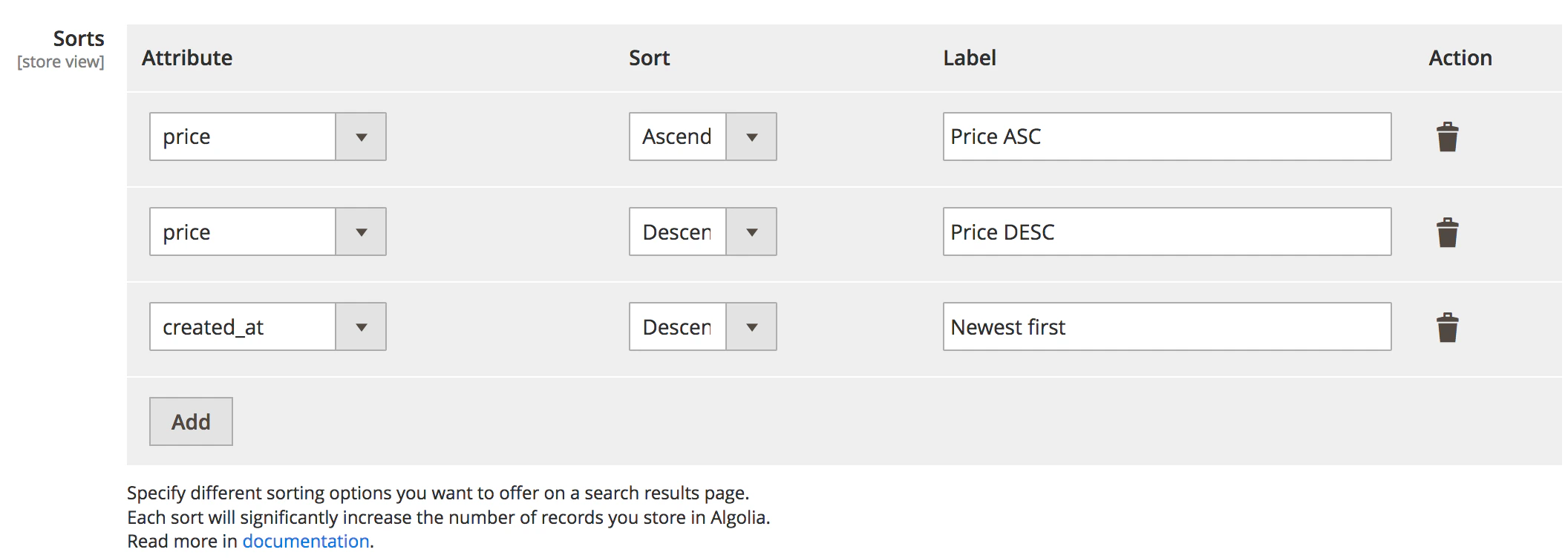
Indices
Algolia’s dashboard provides insight into how the Magento extension uses indices. Indices created by the extension depend on how Magento configures indices for products, categories, and additional sections. The index name is influenced by the index name prefix defined in the Magento configuration. If you use the extension in production, you probably also want a staging or development environment. Use meaningful prefixes so you can tell which index belongs to which environment. For example:prod_magento, staging_magento, and dev_magento.
Configure your Adobe Commerce and Magento Open Source setup correctly to keep indexing accurate.
This helps you predict the number of indices created by the Algolia AI Search & Discovery extension.
If the number of indices doesn’t match your expectations,
check your configuration settings.
Incorrect configuration
The following are examples of Magento configurations that can lead to an unexpected number of indices.Different configuration on store view or website level
Magento lets you define a default configuration and a configuration for a specific store view or website. You can configure some extension settings this way too. For example, you can sort differently on two websites in the same Magento installation. This creates a different number of indices for each website. Magento only shows the default configuration on the settings page. As a result, admins can miss this manual configuration, especially with more than one administrator. If an unexpected number of indices is created, ensure no unwanted configuration has been set by switching from the default settings to a store view or a website-specific configuration.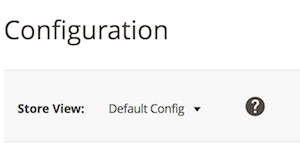
All stores configuration
The extension adheres to Magento’s list of websites, stores, and views. Find these by going to Stores > Settings > All Stores. If you have a multilingual site that uses the extension, every language needs its own indices. This can significantly increase the total number of indices.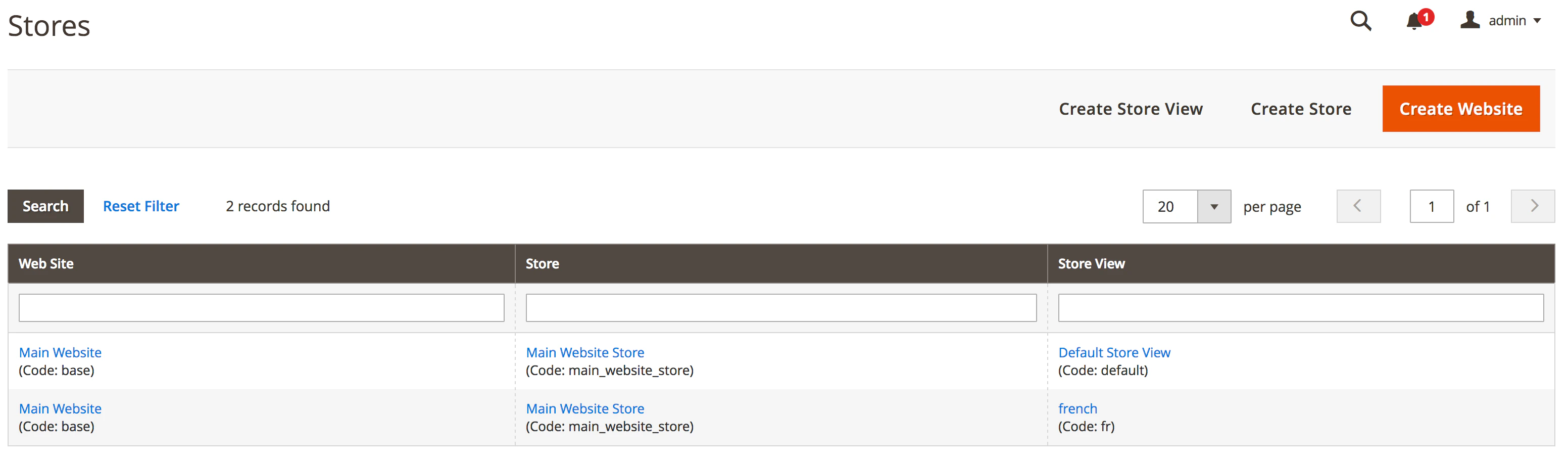
Customer group configuration
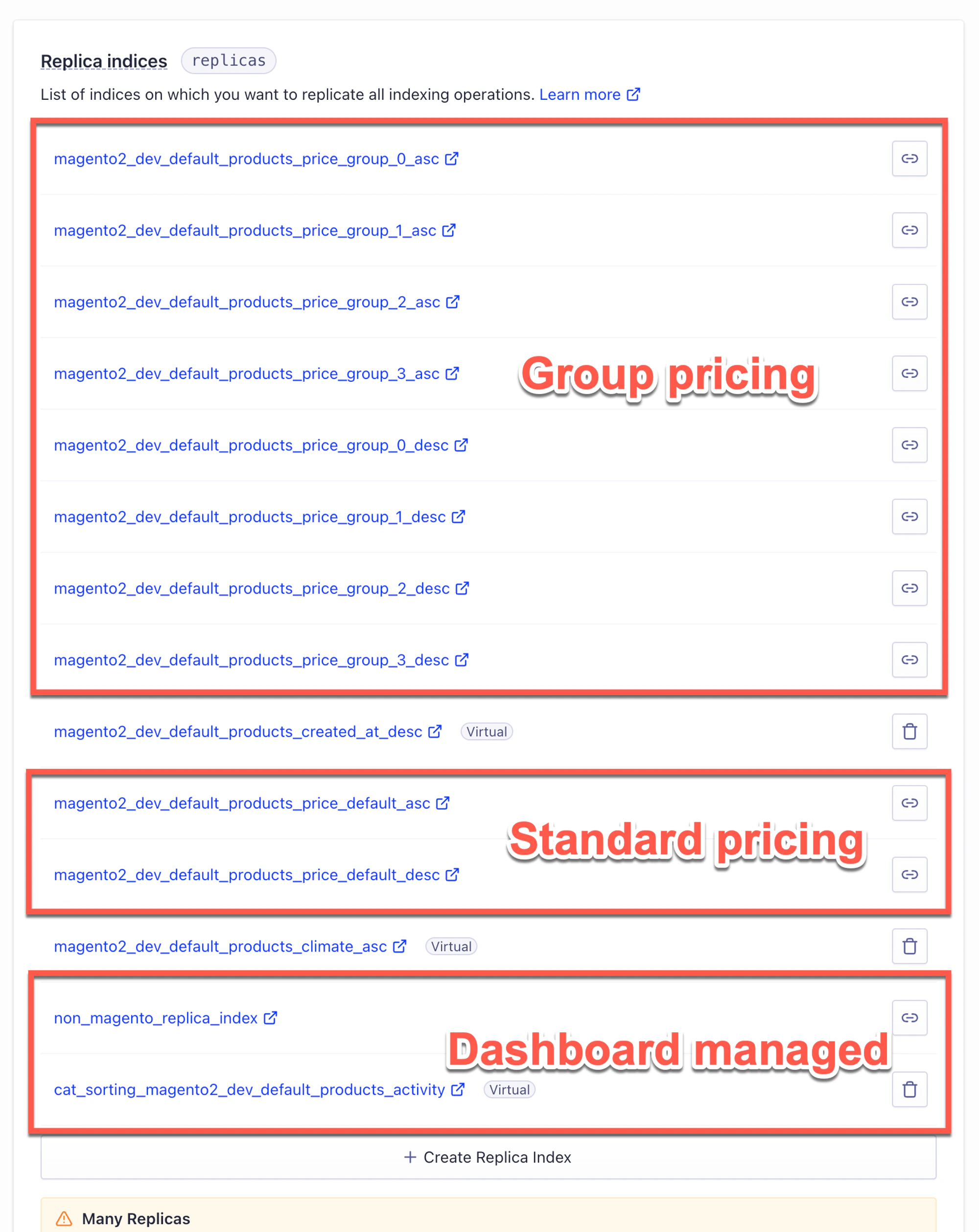
By default, Magento creates a set of four customer groups (General, Not logged in, Retailer, and Wholesale). Third-party extensions can create their own customer groups in the Magento installation, sometimes even hundreds of them. The extension lets you manage customer groups in the advanced section of the configuration. Be careful when enabling this feature. Every customer group will create new replica indices for every sort-by-price option, per store. If a third-party extension creates hundreds of customer groups, Algolia’s extension will create hundreds more indices per store view.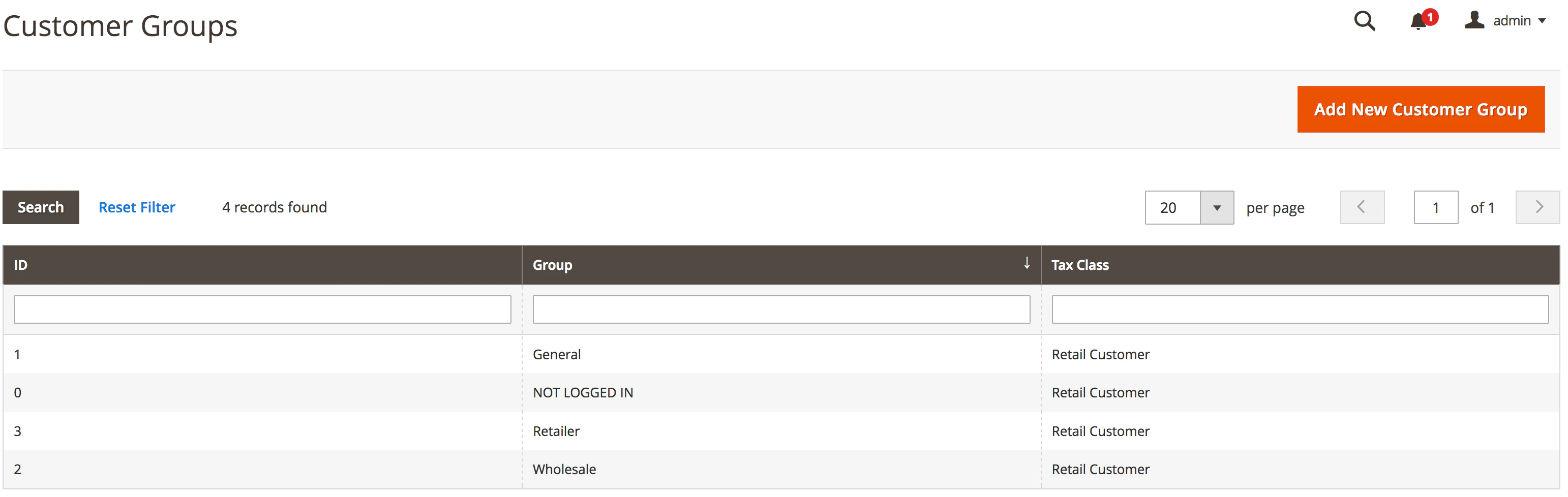
Out of sync data
If it seems like data isn’t being pushed to Algolia’s servers:- An error may have occurred during the indexing process: investigate the logs
- If the indexing queue is turned on, there could be a queue processing problem
- The product or category being indexed has a particular status preventing it from being indexed.
Debug missing products or categories
If your data isn’t showing up but meets the requirements listed on the indexing page:- Go to the Magento back-office and find the product or category missing.
-
Save the item without changing anything. This should trigger the Magento
saveevent and send any data that needs updating to Algolia’s servers. This also works if the indexing queue is off. - Go to Algolia’s dashboard.
-
Check if the extension has updated the product or category. Find the index, look up the product/category and check the
algoliaLastUpdateAtCETattribute. This attribute contains the date and time the records were updated (Central European Time).
-
If products are still out of sync, check the logs on Algolia’s dashboard: go to API Monitoring > Search API Logs. Reindexing triggers a POST request that should appear at the top of the list. The URL should be something like
/1/indexes/[INDEX_NAME]/batch. Click the link to see the request details. If you see the attributes in the Request body tab, under theAddObjectaction, the extension sent the record to Algolia’s servers.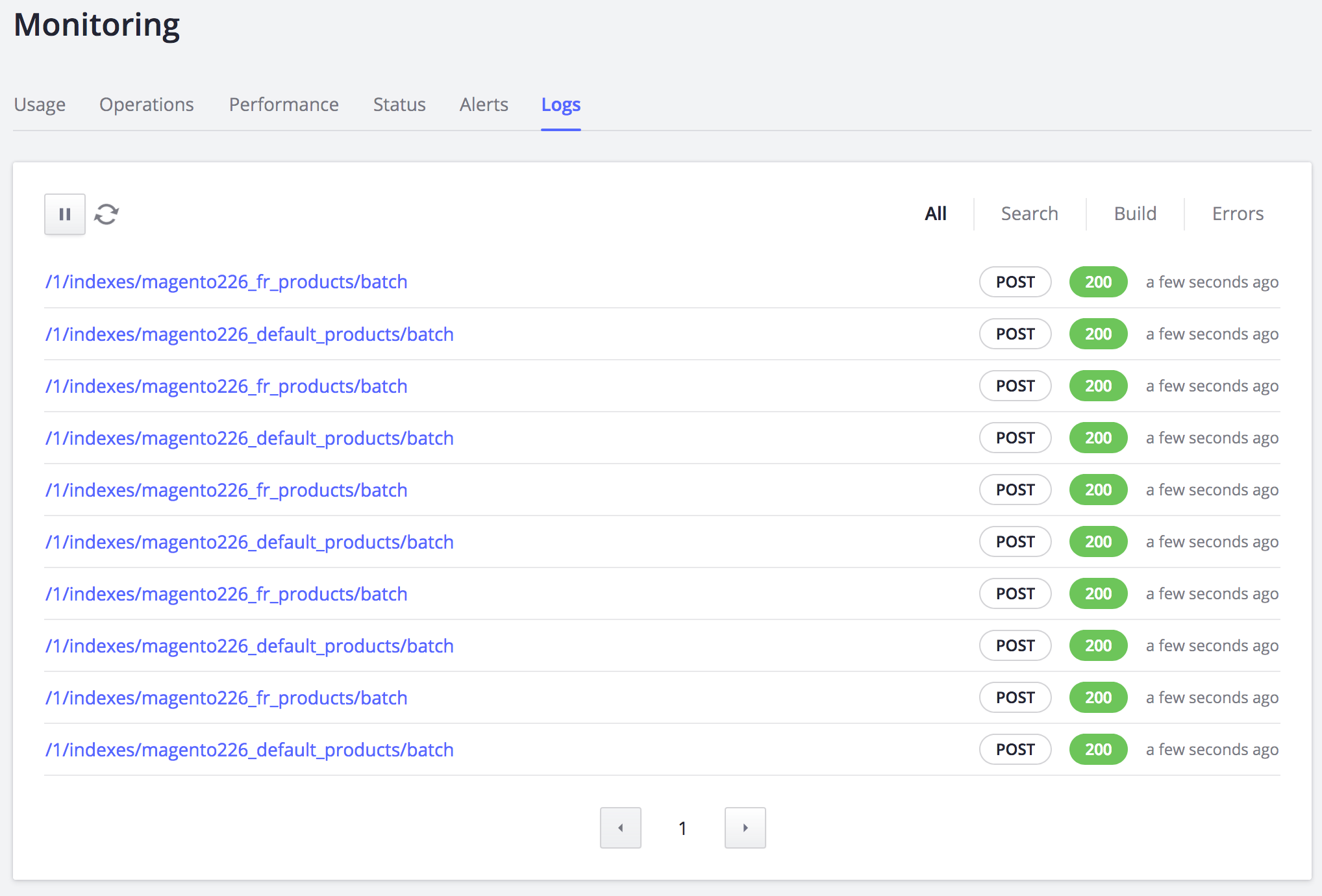
-
If the attributes aren’t updated, and the
algoliaLastUpdateAtCETattribute in the index’s object isn’t updated, use the SKU reindexing form. This form gives you feedback on why the product hasn’t updated.
Third-party extensions
The extension uses Magento’s plug-in system to apply Algolia’s logic to the following Magento classes:Magento\Catalog\Model\ResourceModel\ProductMagento\Catalog\Model\Product\ActionMagento\CatalogInventory\Model\ResourceModel\Stock\ItemMagento\Catalog\Model\ResourceModel\CategoryMagento\Catalog\Model\Category\Action
save events on these classes breaks real-time catalog updates.
To fix this, trigger reindexing by hand.
Updates aren’t sent to Algolia
If the data in Algolia’s dashboard has unexpected values, look at the attributes specific to the store view or website. The extension respects settings at the store view and website level. These may override the default settings. To check this, switch to the store view or website setting using Magento’s store switcher, in the top-left corner of the window.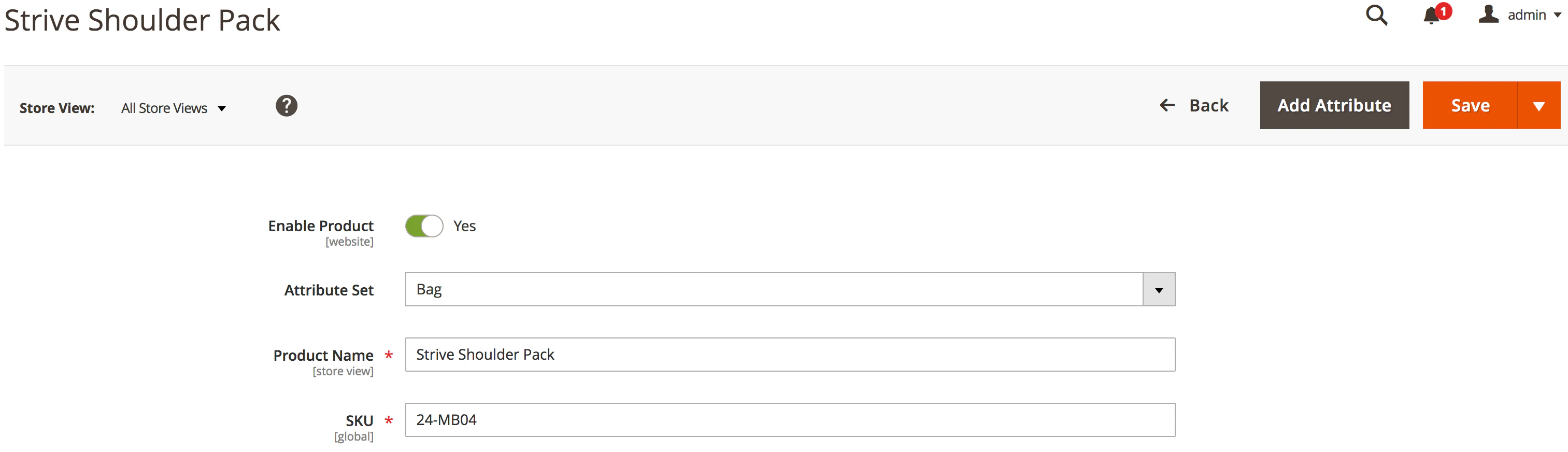
Investigate the logs
1
Check for temporary Algolia indices
Figure out if your indexing process generates errors.
Since the process can be asynchronous, errors can happen without you being aware.During the asynchronous indexing process, the extension generates temporary indices suffixed by Because the temporary index is only swapped after the whole process completes, if there is an error, the temporary index will still exist.
Check Algolia’s dashboard to see if any indices end with a
_tmp.
For example, if the main product index is magento_products_default,
the extension will generate an index named magento_products_default_tmp.This feature is enabled by default.
To change this setting,
go to Stores > Configuration > Algolia Search > Indexing Queue / Cron and update Use a temporary index for full products reindex.The temporary indices are created to do an atomic reindex to prevent production indices from being corrupted.
_tmp suffix and haven’t been updated in a while.2
Review the logs
All errors are logged by default in Magento.
The The error messages in the log will help you pinpoint the issue’s source.
var/log folder in the Magento installation contains two log files:system.logexception.log
Command line
You can also request more detailed logging during the indexing process.
Detailed logging
Enable detailed logging to provide additional information about how Magento indexes your data. As of version3.15 this information is written to var/log/algolia.log. To monitor this during indexing operations, run the following command from the root folder of the Magento installation:
Command line
deleteObject requests
Algolia issues a deleteObject request when the indexing process determines the product shouldn’t be visible on the storefront.
It also happens if Algolia can’t find a matching record in the Magento price index.
If this is unexpected, use detailed logging to find the cause and fix it.
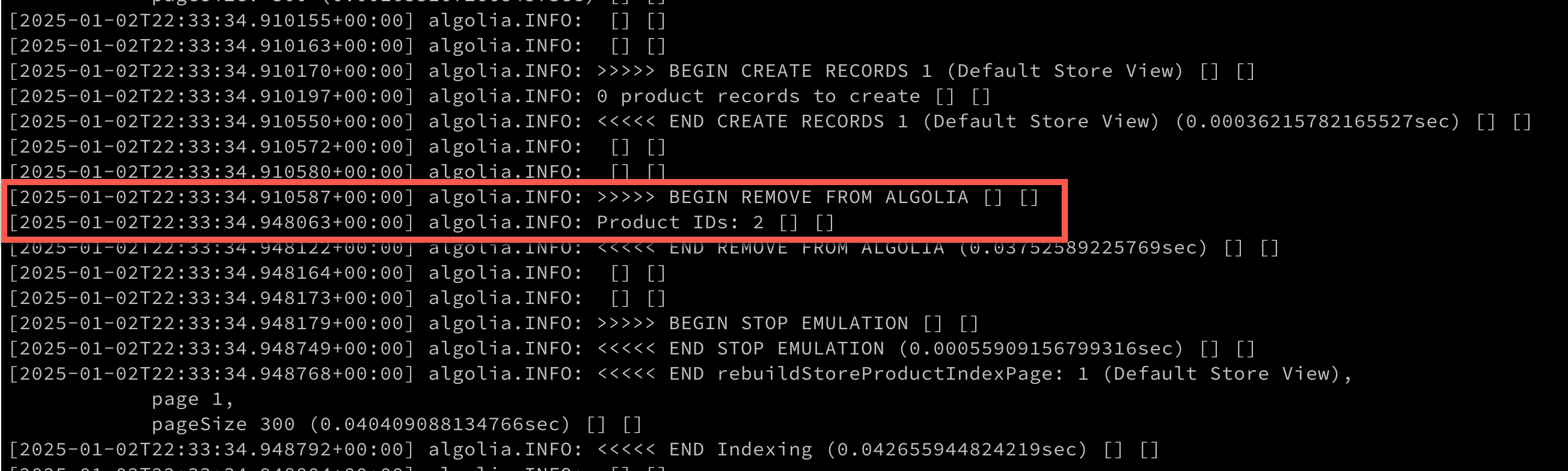
After enabling logging, inspect the logs for the message BEGIN REMOVE FROM ALGOLIA:
The queue may be stuck
If the data in your index isn’t up-to-date, your indexing queue may be stuck. The queue relies on one of Magento’s indexers, added by the extension: thealgolia_queue_runner.
Ensure the Magento indexer is “ready” by running the following in the command line:
Command line
Command line
Monitor the queue
From version 1.8 of the extension, there’s a monitoring page (at Stores > Algolia Search > Indexing Queue). This page contains a grid displaying the contents of the indexing queue. It lets you monitor the number of operations the queue needs to perform.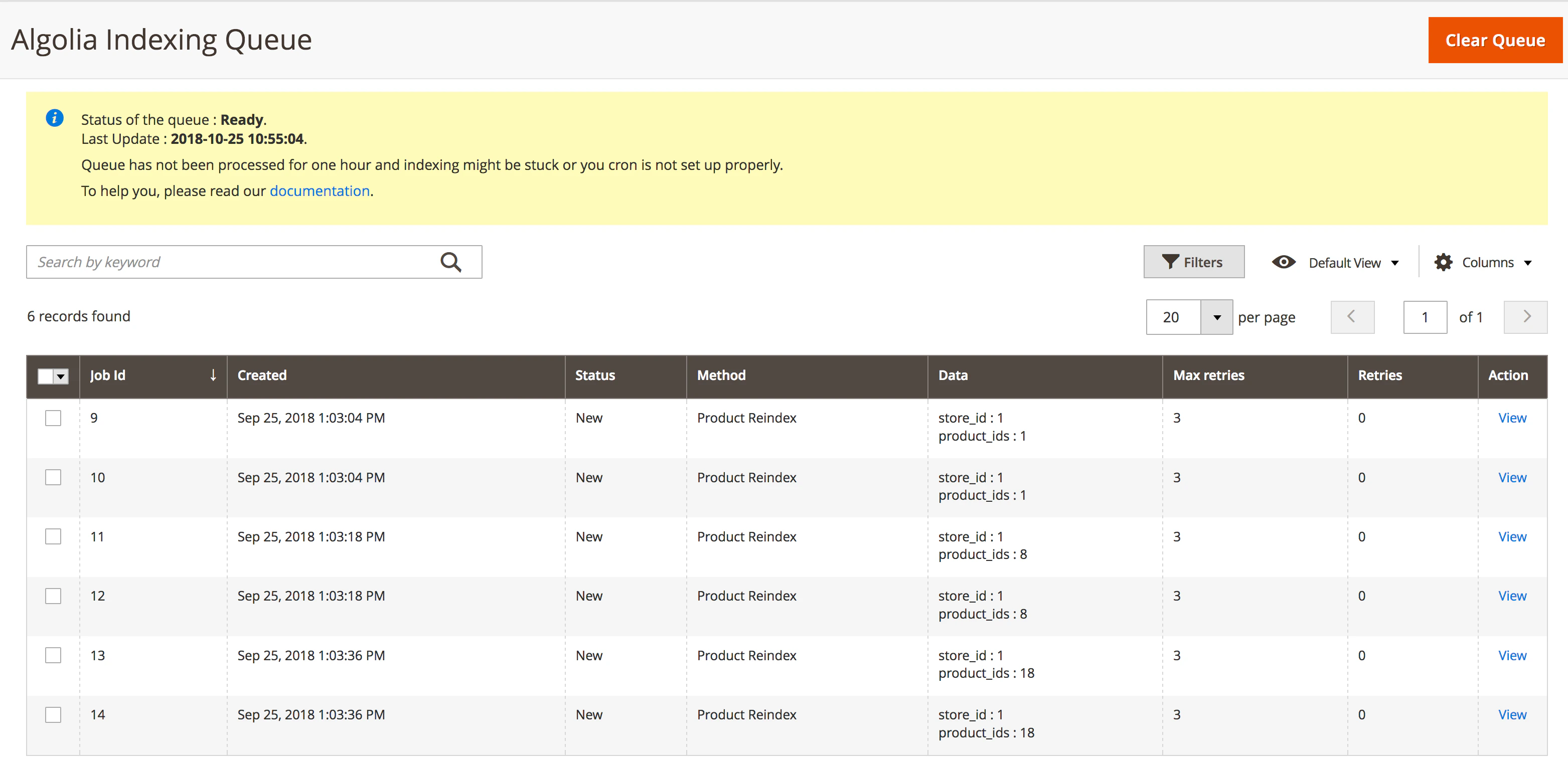
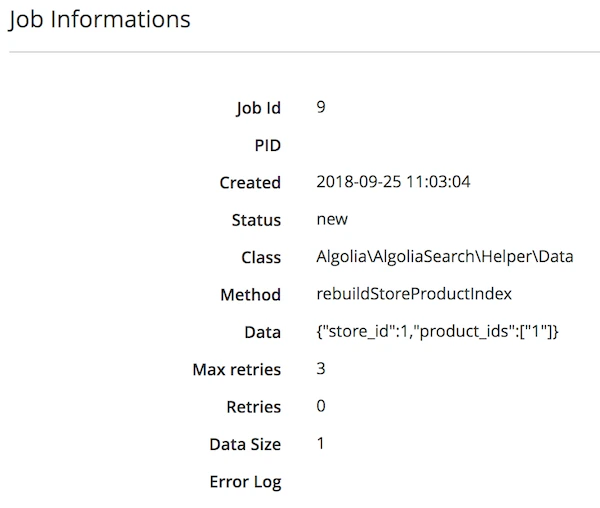
algoliasearch_queue_archive table.
Check this table for error logs too, since it stores the last error along with the job.
Migrate to granular virtual replicas
Starting with version 3.14.0 of the extension, you can turn on virtual replicas for individual sorting strategies. You can set this at the attribute level for the default, website, or store view scope. Previous versions of the extension used a single “Yes/No” setting to turn on virtual replicas. This setting wasn’t store-scope sensitive: turning it on changed all sorting replicas from standard to virtual. This caused problems: a Magento instance with many replicas could exceed the limit of virtual replicas per index. This is especially true for stores with many customer groups, since the extension must create a sorting replica index for each pricing group. You can now set up your replicas how you want, without writing any code.Migrate old configuration data
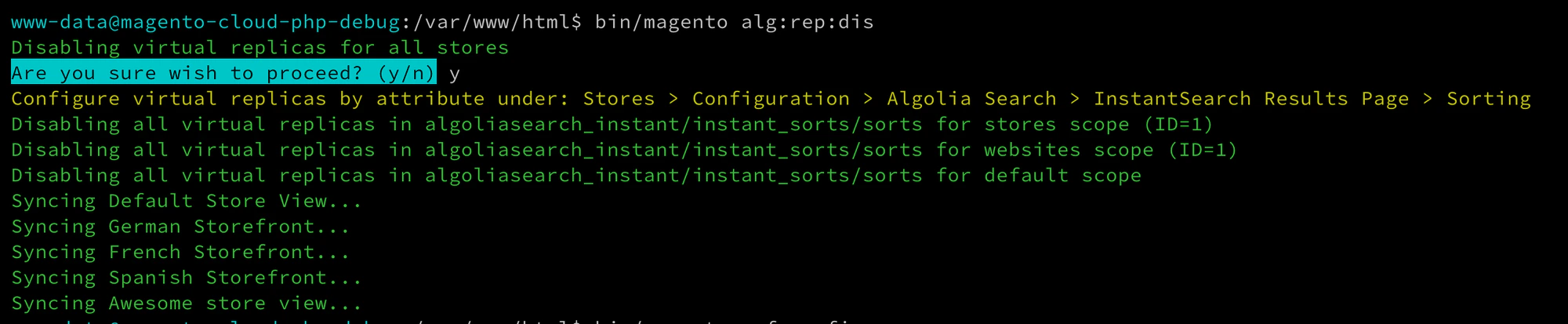
You must migrate this old configuration when you upgrade to 3.14.x. Problems can arise if the previous replica configuration isn’t correct. To avoid this, run the following command when you upgrade:Command line

algolia:replicas:disable-virtual-replicas and rerun setup:upgrade.
CLI tools
A set of CLI tools can help with this. Run the following command to see what’s available:Command line

Command line
Command line
Magento admin updates
When you make changes to the Algolia configuration in your store’s Admin, such as adding sorting strategies or enabling customer group pricing support, you may run into the replica limit again.
Rebuild replica data
Your store’s Admin automatically creates, modifies, and deletes standard and virtual replicas. If your replica configuration in Algolia becomes corrupted or out of sync with Magento, or if the save operation from your store’s Admin doesn’t work, you can rebuild your replica configuration with the following command:Command line
Understand the Algolia replica configuration
The extension updates the Algolia indexreplicas setting for the matching product index for each Algolia-enabled store view in Magento.
Typically, the extension creates one replica index for each sorting strategy defined in your store’s Admin:
magento2_dev_.
magento2_dev_.
See also: Shared Catalogs.