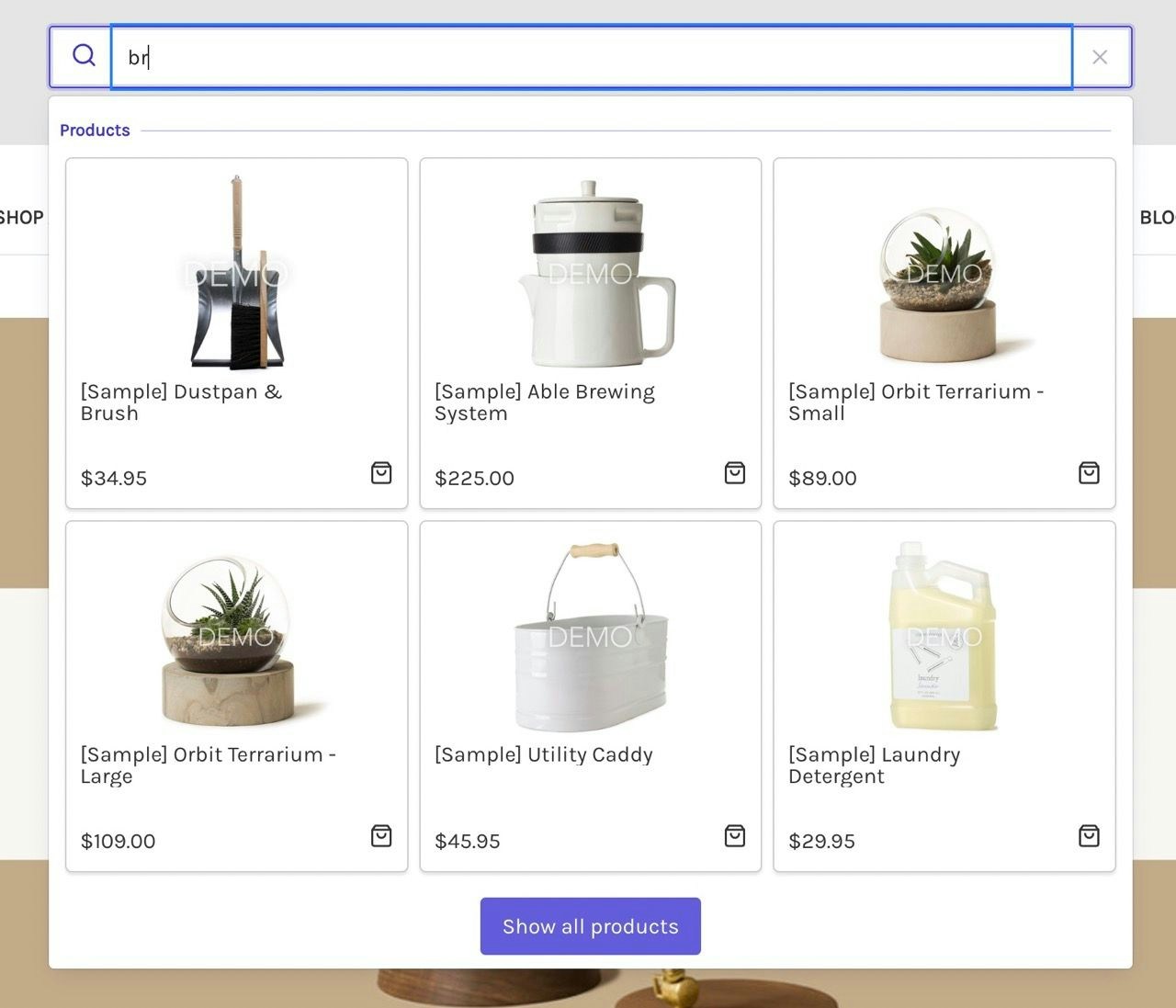
The Algolia integration for BigCommerce includes an autocomplete menu that replaces the default BigCommerce search box and provides results as-you-type.
The autocomplete menu uses Algolia’s Autocomplete UI library.
To configure the autocomplete menu,
go to Search experience in the app and select the storefront channel you want to configure.In the Autocomplete section, use the toggle to turn Autocomplete on or off for the channel.
Turning it on applies the default setup to the channel’s live themes.
Suggestions shown sets the number of products displayed in the menu.
Placement selects the storefront region where the autocomplete widget is added.
The default is header_bottom--global.
Advanced settings contains the CSS selector options:
The Desktop CSS selector option targets the search box on large screens.
The default value is #quickSearch.
If your theme uses separate search boxes for large and small screens,
use the Mobile CSS selector option to target the search box on small screens.
The default value is .navPages-quickSearch.
When providing a mobile selector,
use the Max mobile width option to specify the breakpoint for switching between the small screen and large screen versions of the search box.
The default value is 800px.
When you change any of these settings, a bar with unsaved changes appears.
Select Save changes to apply them to your storefront.
Autocomplete is pre-configured for the Cornerstone theme in BigCommerce.
For other themes, you might need to tweak the Autocomplete menu to match.
You can adjust both the CSS and JavaScript for Autocomplete.
See Customize search settings:
in the code editor, select the Autocomplete tab.